
Administration screens are under the person icon in the top bar: Organisation Settings, Organisation Account, Workflows, Document and Email Templates, Settings, Forms, Reports, Users and Staff.
1Users: who can sign in
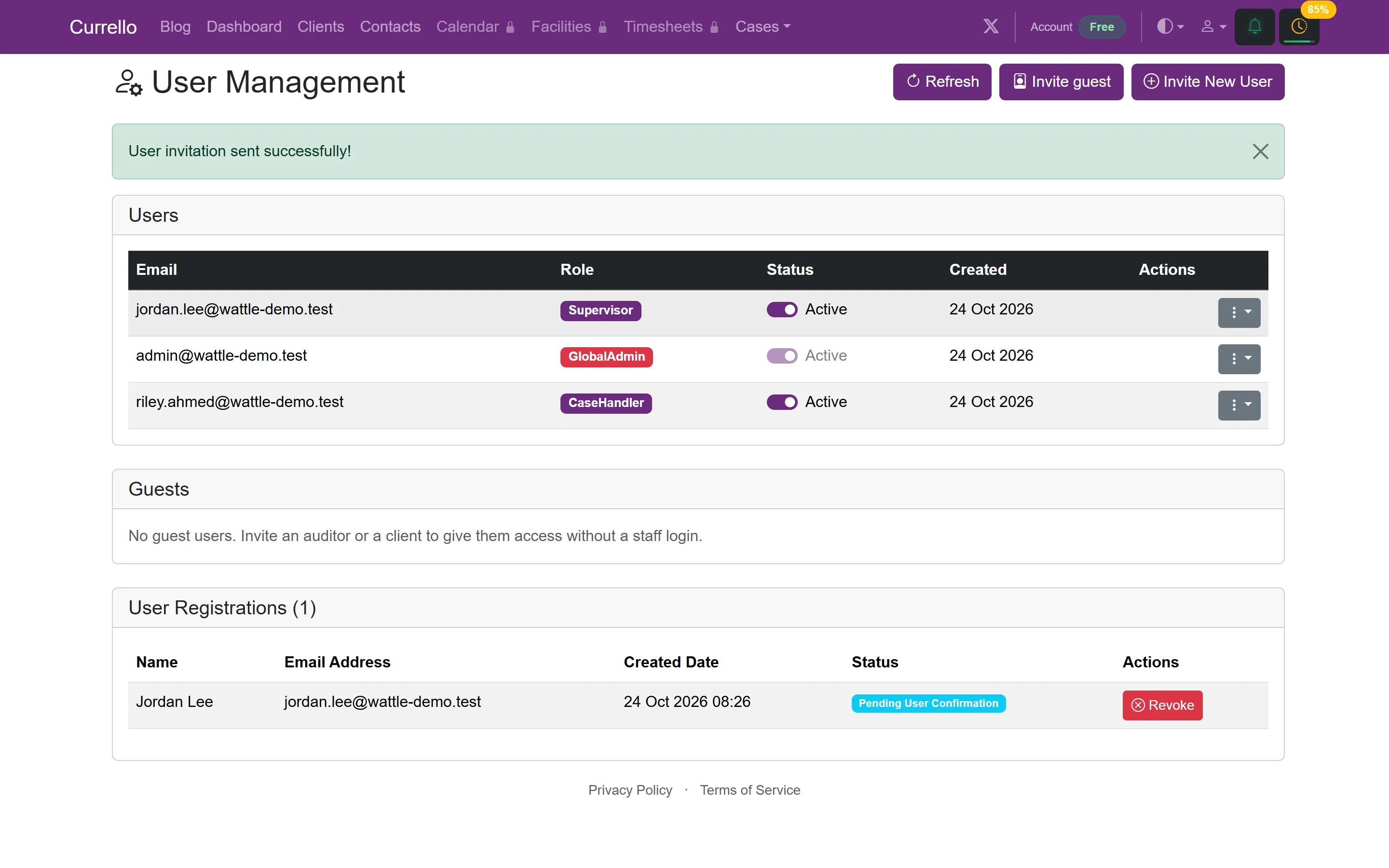
Users lists everyone with a login, their system role and status. Guests (auditors, participants and partners) are listed separately, and pending invitations appear under User Registrations until they are accepted.
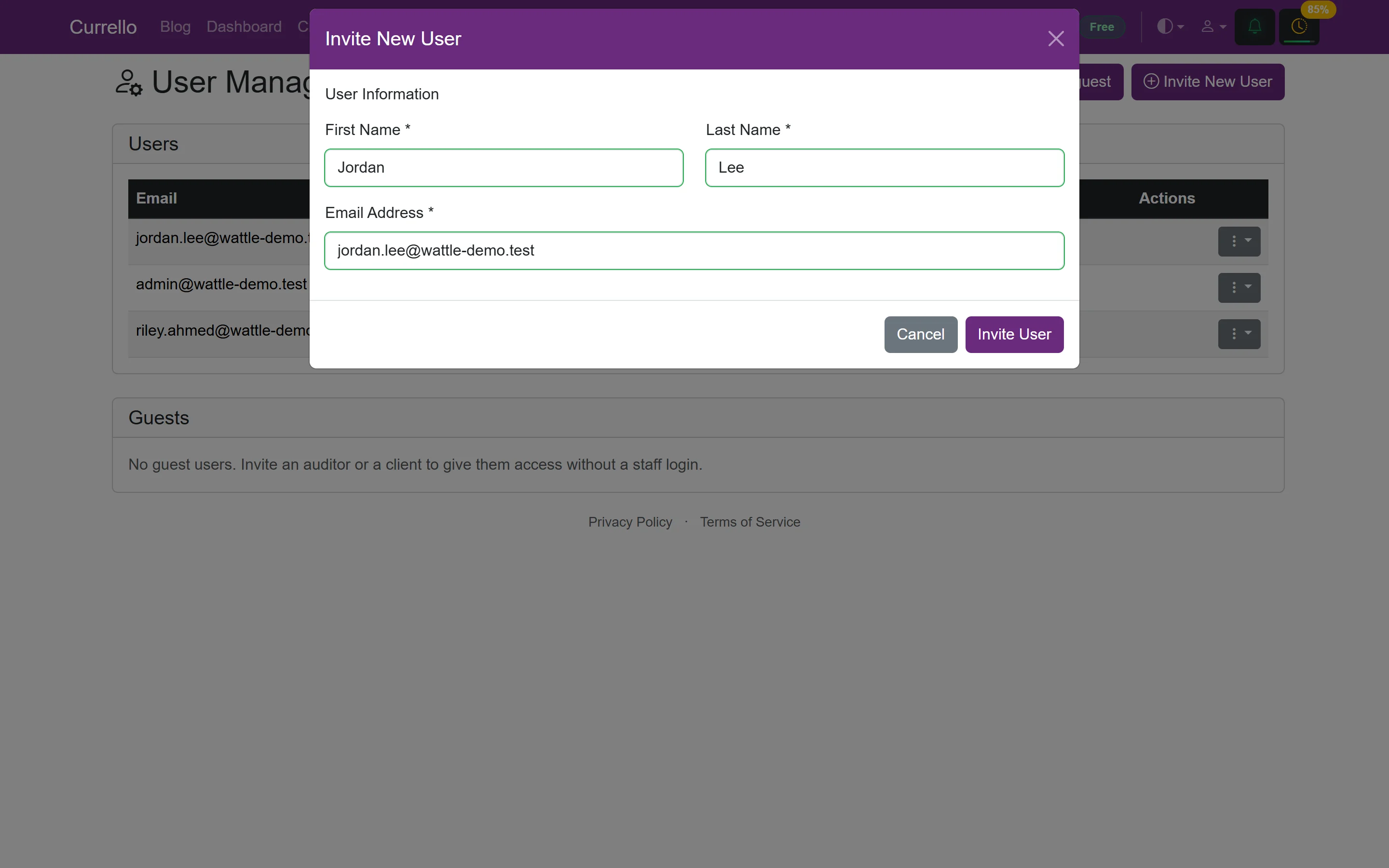
- Select Invite New User.
- Enter first name, last name and email, then select Invite User.
- They receive an email with a code to set their password. You can Revoke a pending invitation.
2Staff: who does the work
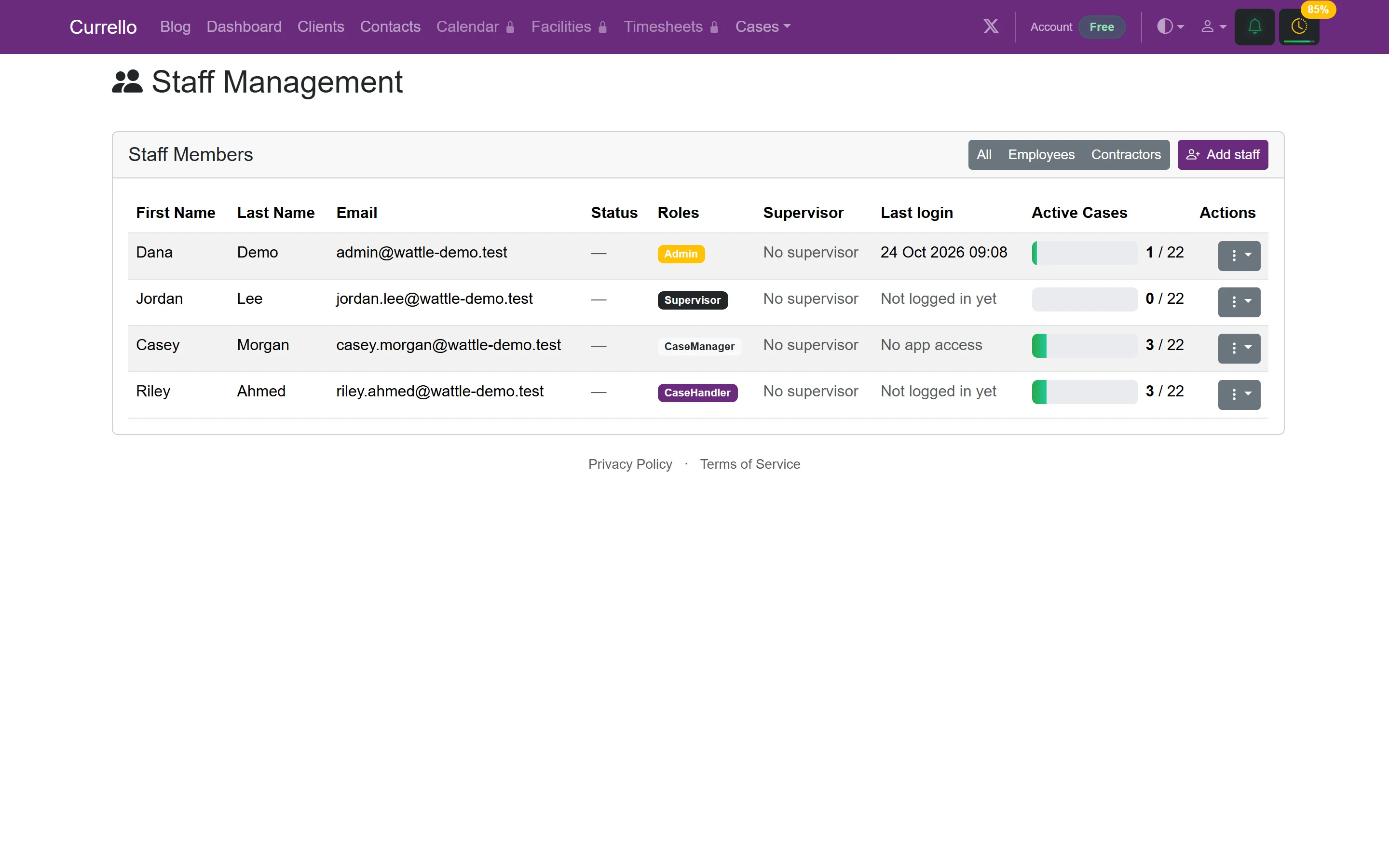
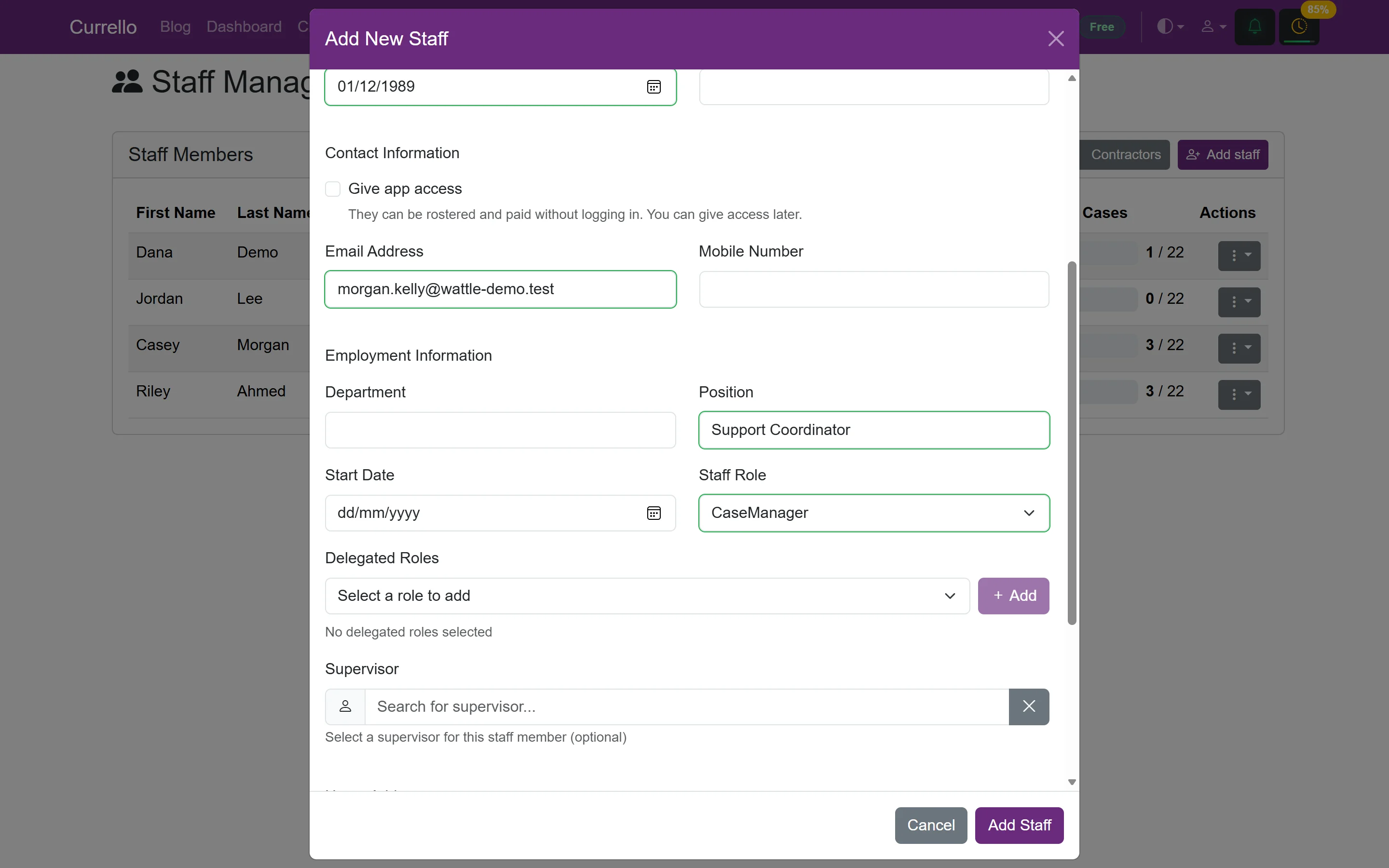
Staff are the people who coordinate cases, and they need a staff profile to work with clients and cases. The staff list shows each person's role, supervisor, last login and active caseload against capacity. Filter by employees or contractors.
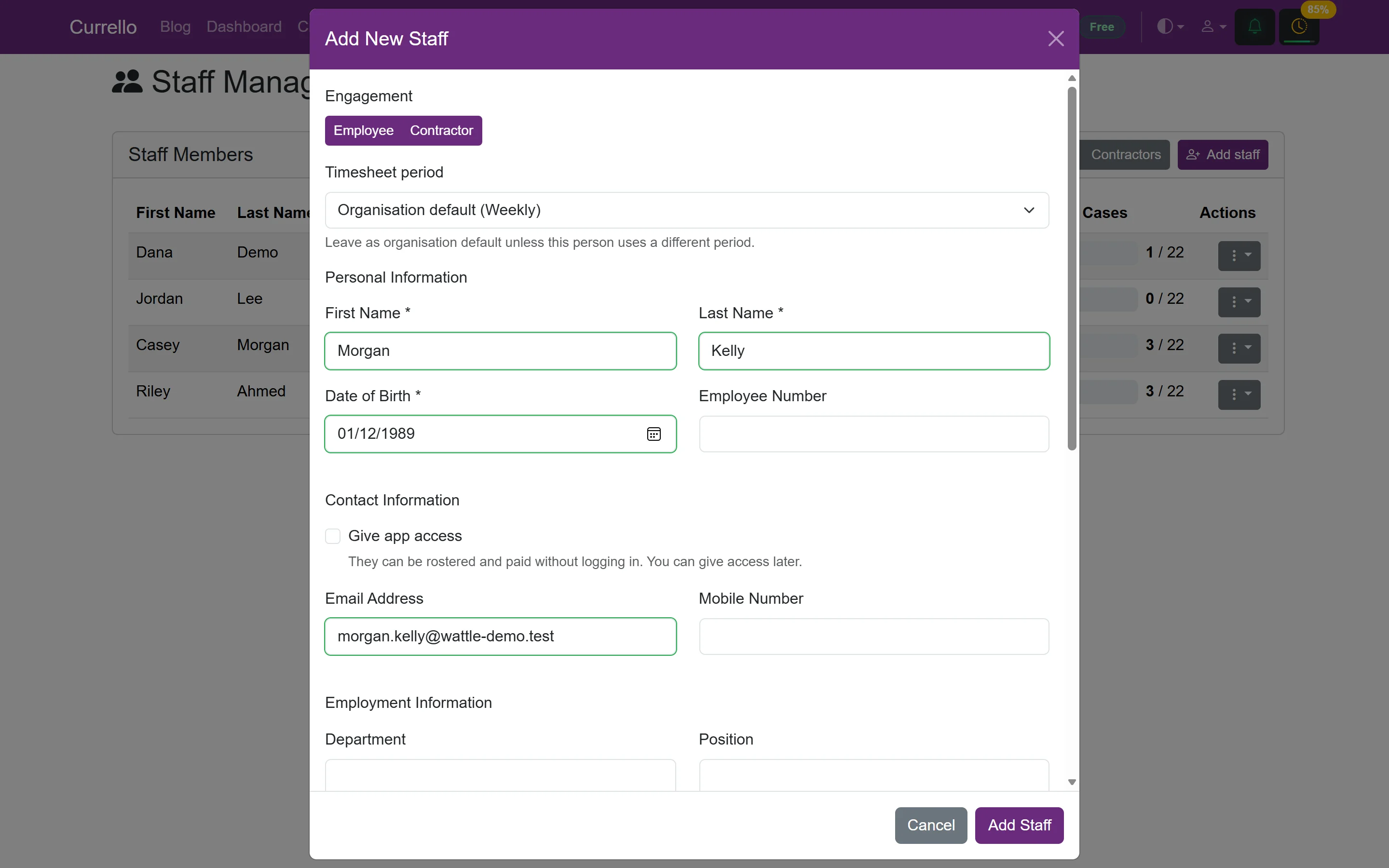
- Select Add staff and choose Employee or Contractor.
- Enter name and date of birth. Tick Give app access to email them an invitation to set a password.
- Add department, position and start date, and choose a Staff Role. Add delegated roles if they cover for someone.
- Optionally choose a supervisor, so their cases show on the supervisor's My Cases page, and add a home address.
- Select Add Staff.
3Roles at a glance
| Staff role | Typical use |
|---|---|
| Admin | Practice manager. Full case, client and operational access. |
| Case Manager / Case Handler | Support coordinators who carry a caseload. |
| Supervisor / General Manager | Team leads who oversee other coordinators' cases. |
| Case Administrator / Analyst | Back-office and reporting support. |
| Facility Manager / Worker | Facilities and rostered shift work, with no case or client access. |
Separately, each login has a system role (for example Global Admin, User Admin or Auditor) that controls administration screens such as Users and Settings.
4Application settings
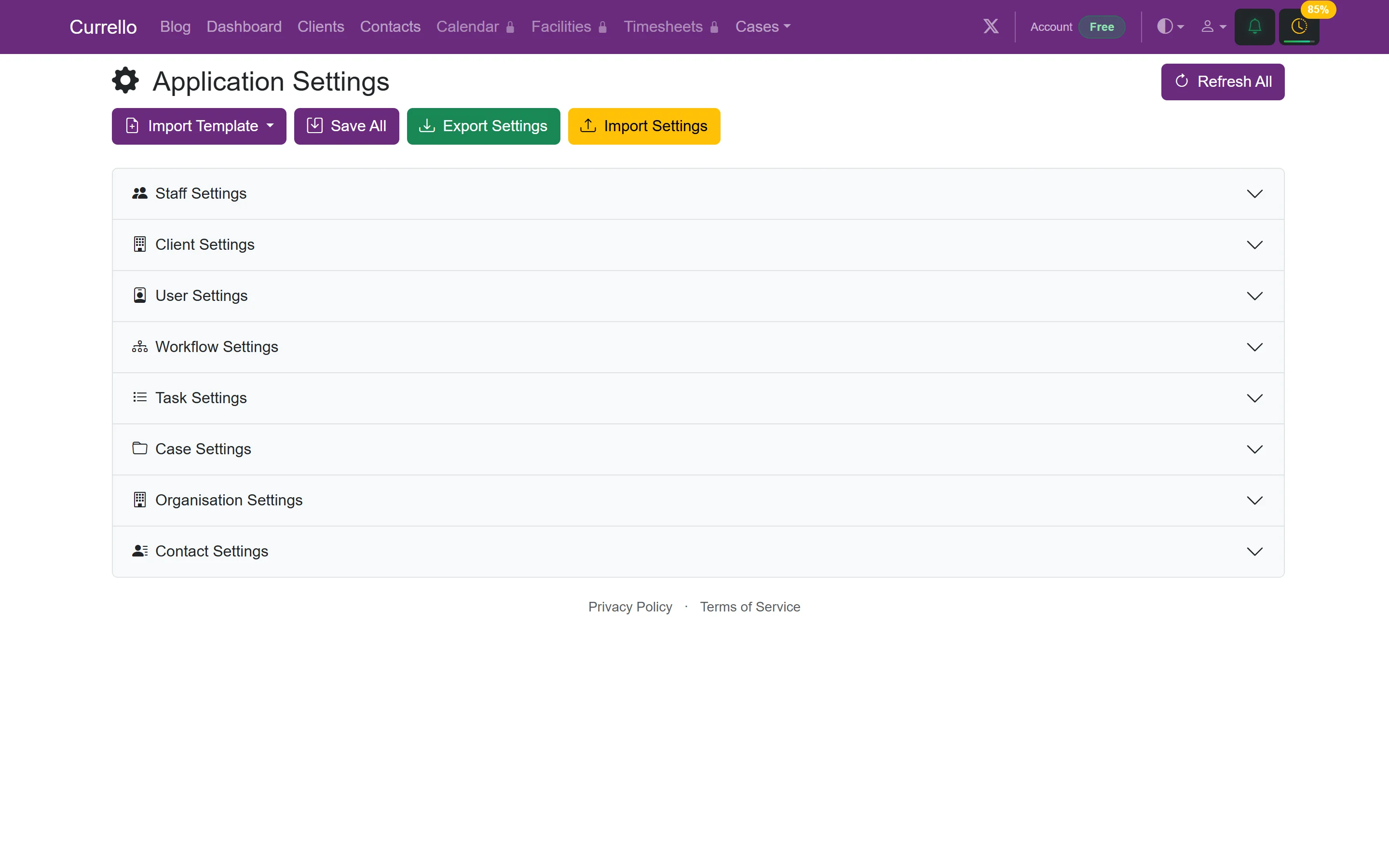
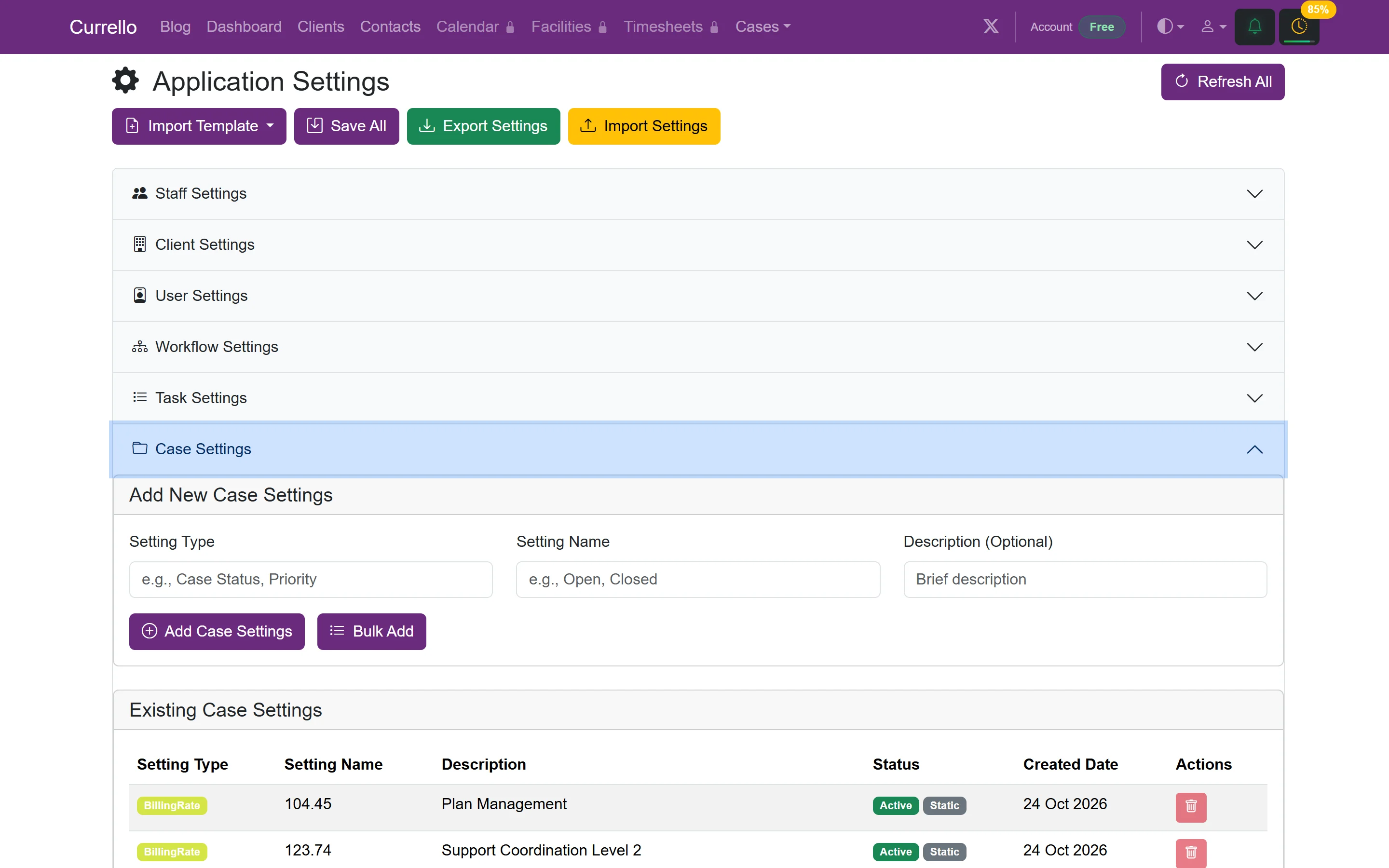
Settings holds the lists and defaults Currello uses everywhere, grouped into Staff, Client, User, Workflow, Task, Case, Organisation and Contact settings. Billing rates, for example, are case settings. Open a group to add, bulk add or remove values. Use Export Settings and Import Settings to copy a configuration between organisations.
5Your organisation
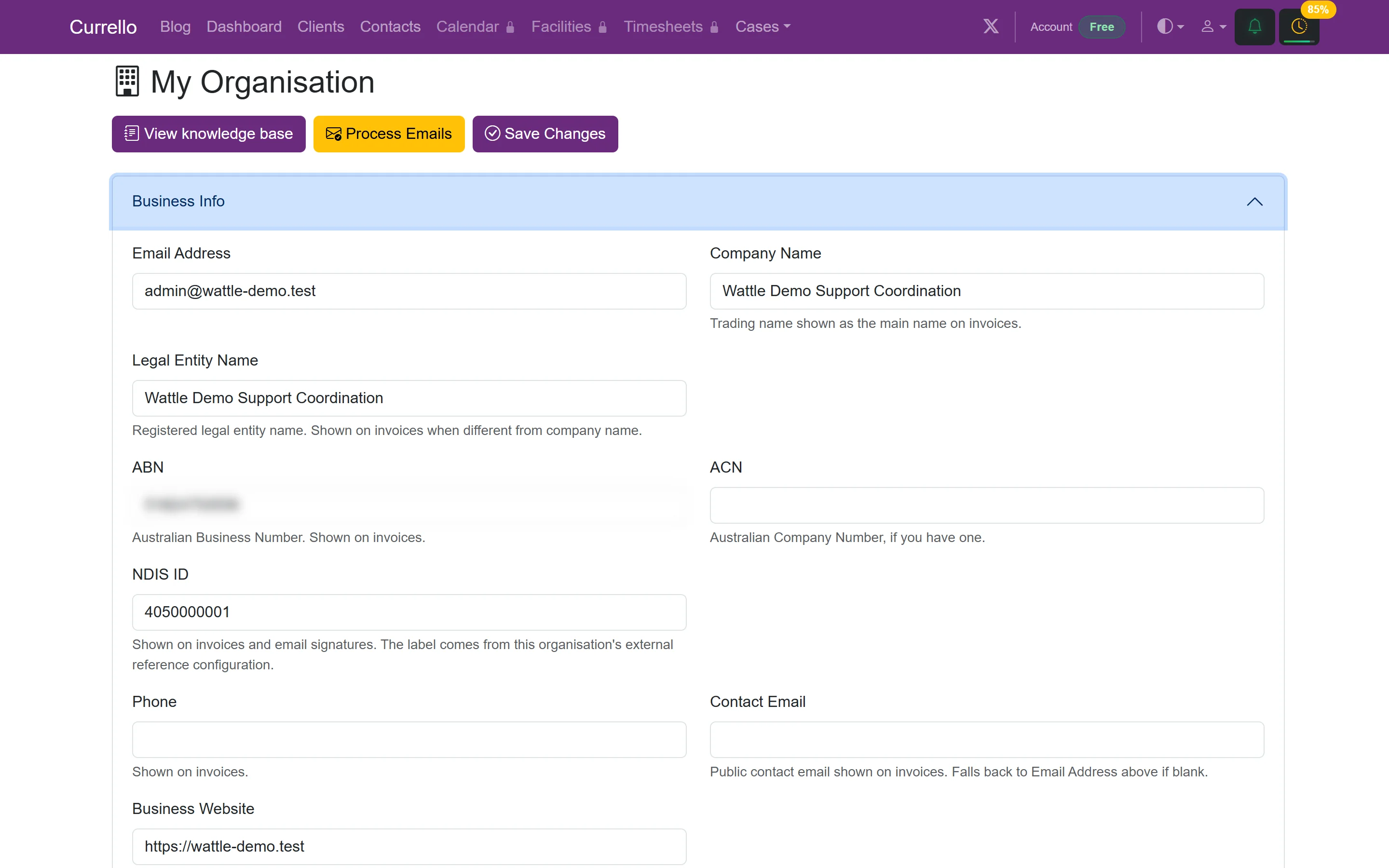
Organisation Settings (My Organisation) holds your business details as they appear on invoices and emails: company and legal entity name, ABN, NDIS ID, phone, contact email and website. It also has accounting, communication, connectivity and default case folder settings. Select Save Changes when done.
6Workflows
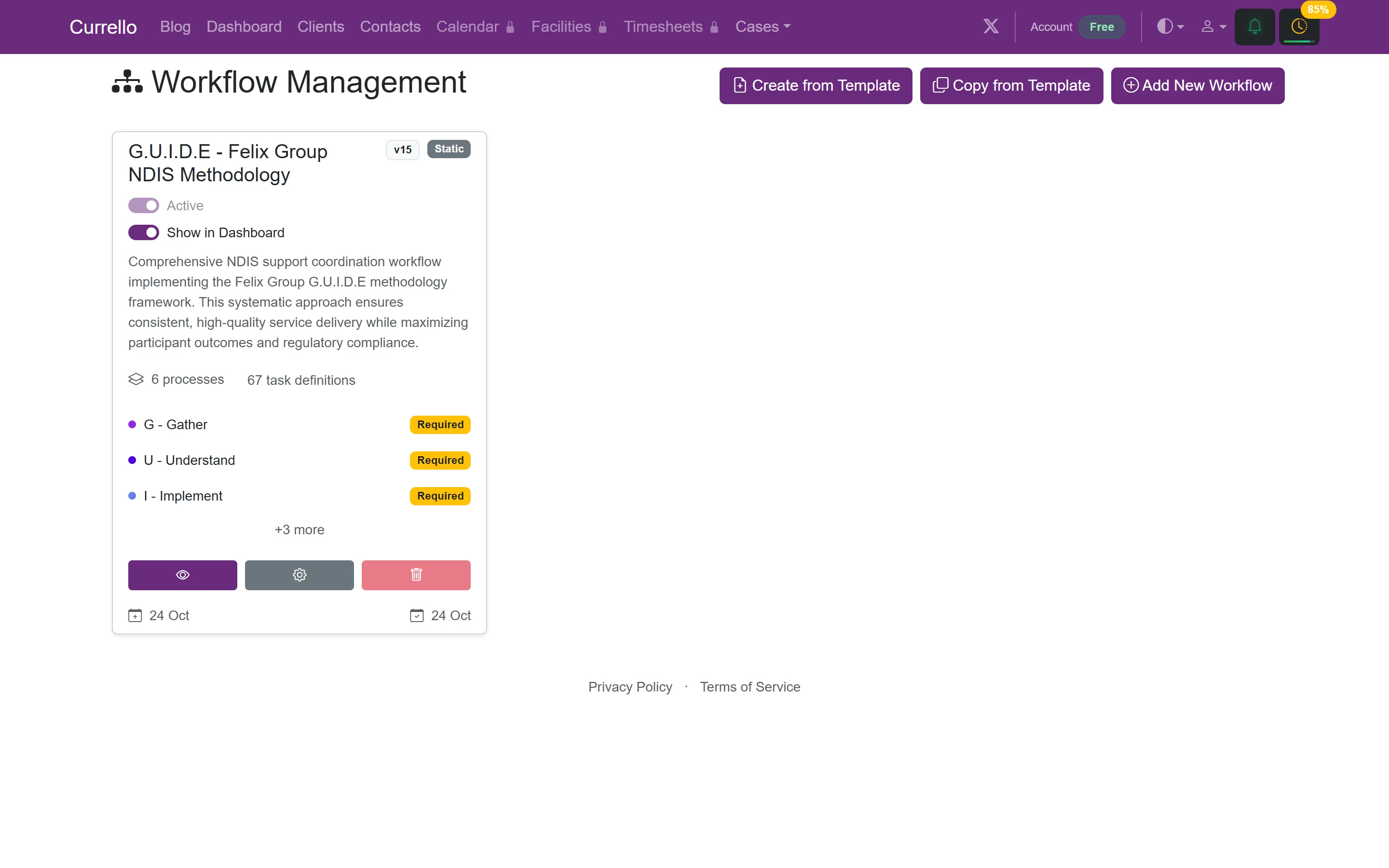
Workflows shows each workflow with its stages and task count. Switch Active off to stop it being used for new cases, and Show in Dashboard to control the dashboard. Use the eye icon to view it and the cog for settings. Add more from a template, copy a template to customise it, or build one from scratch. Template workflows are static, so copy one if you want to edit it.
7Plans and billing
Organisation Account shows your current plan and what each plan includes. The free plan includes the core platform (cases, workflows, clients and staff) for up to 15 active cases. Standard adds unlimited cases and document templates. Business adds communication (Office 365 or Google), timesheets, accounting (Xero or QuickBooks) and facilities. Enterprise adds advanced workflow, calendar, reporting and AI.
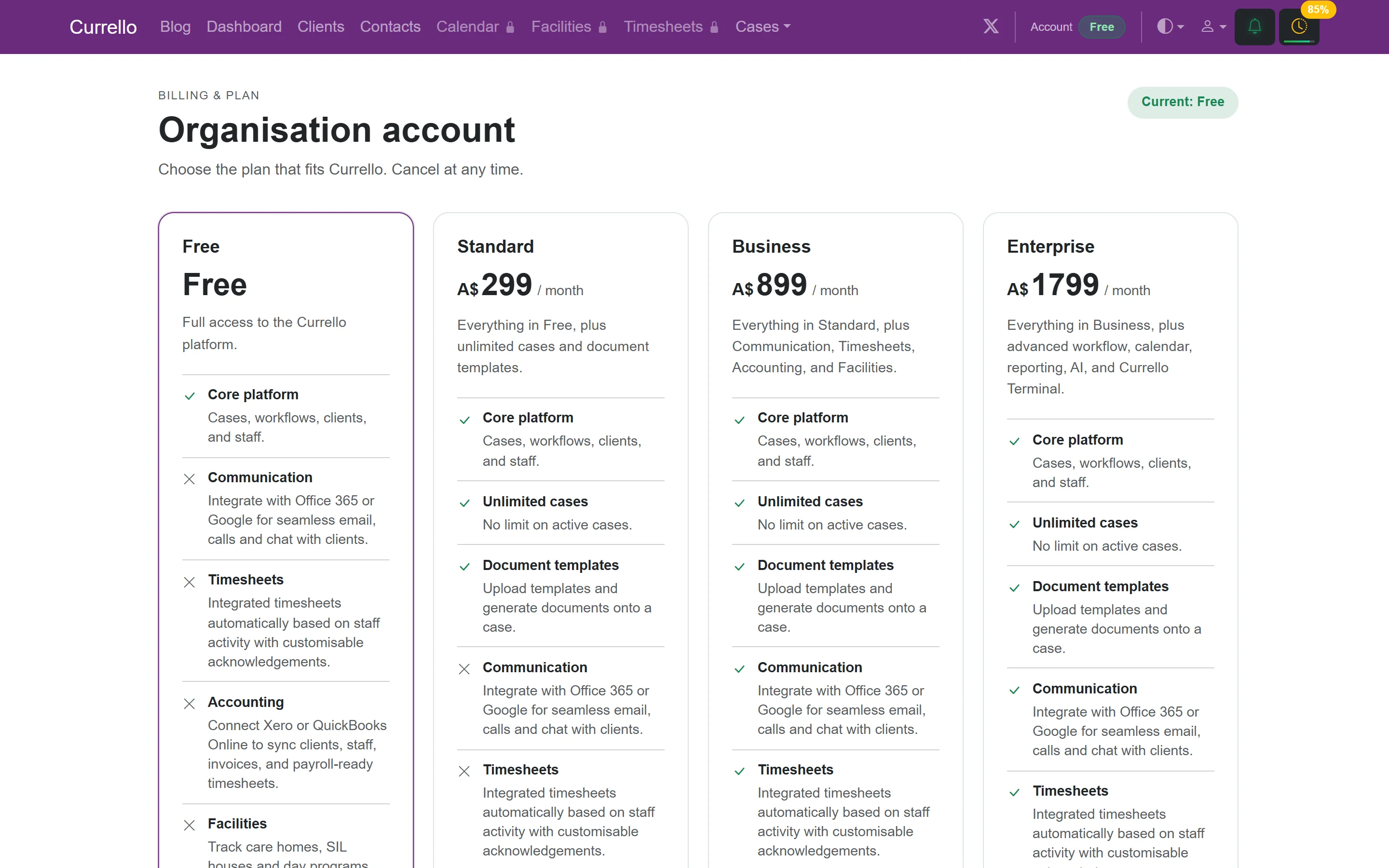
Prices on this screenshot were current when it was captured. See Pricing for today's plans.