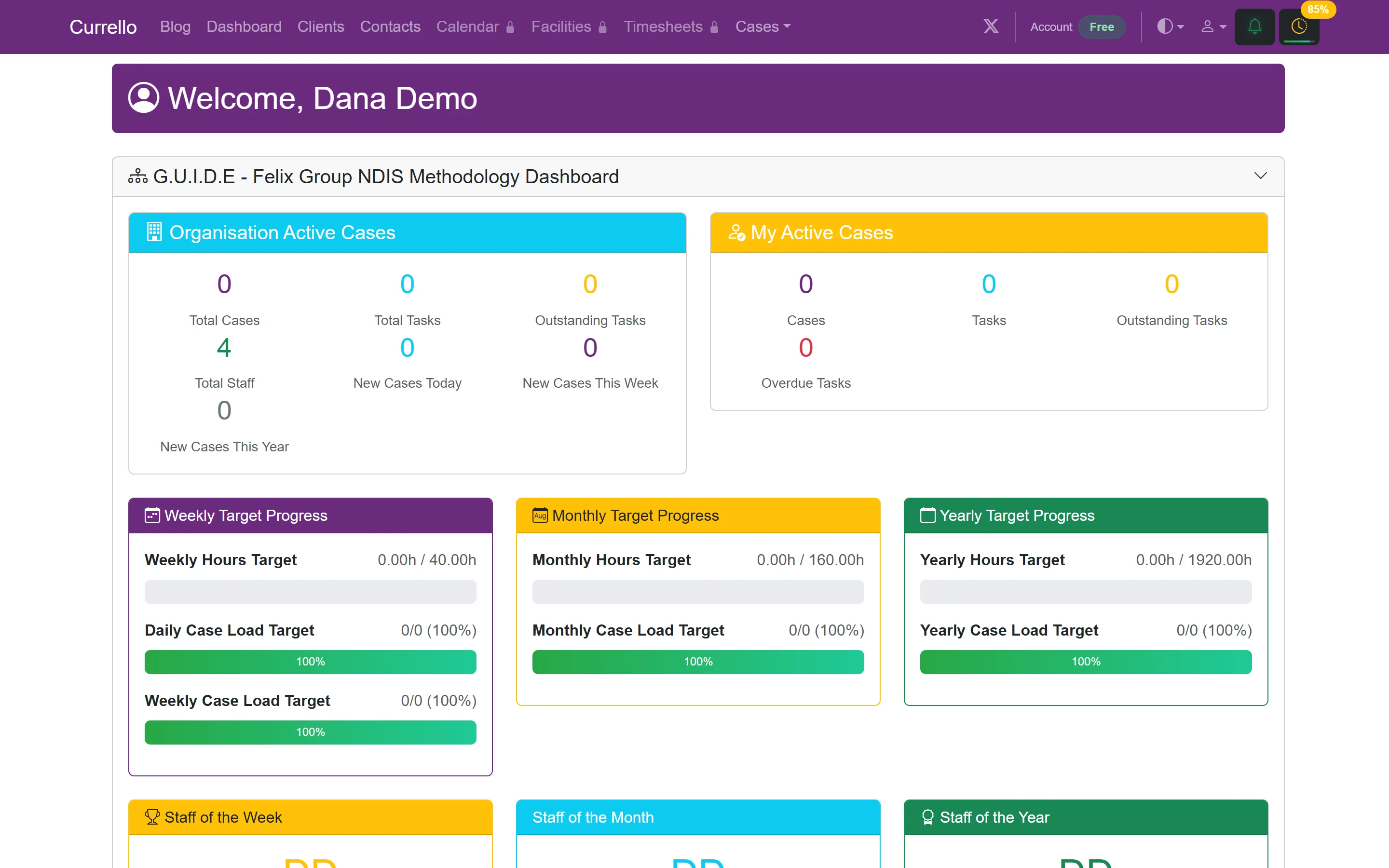
1Register your organisation
From the Currello home page, choose Get started free. Registration creates your organisation and its first administrator account.
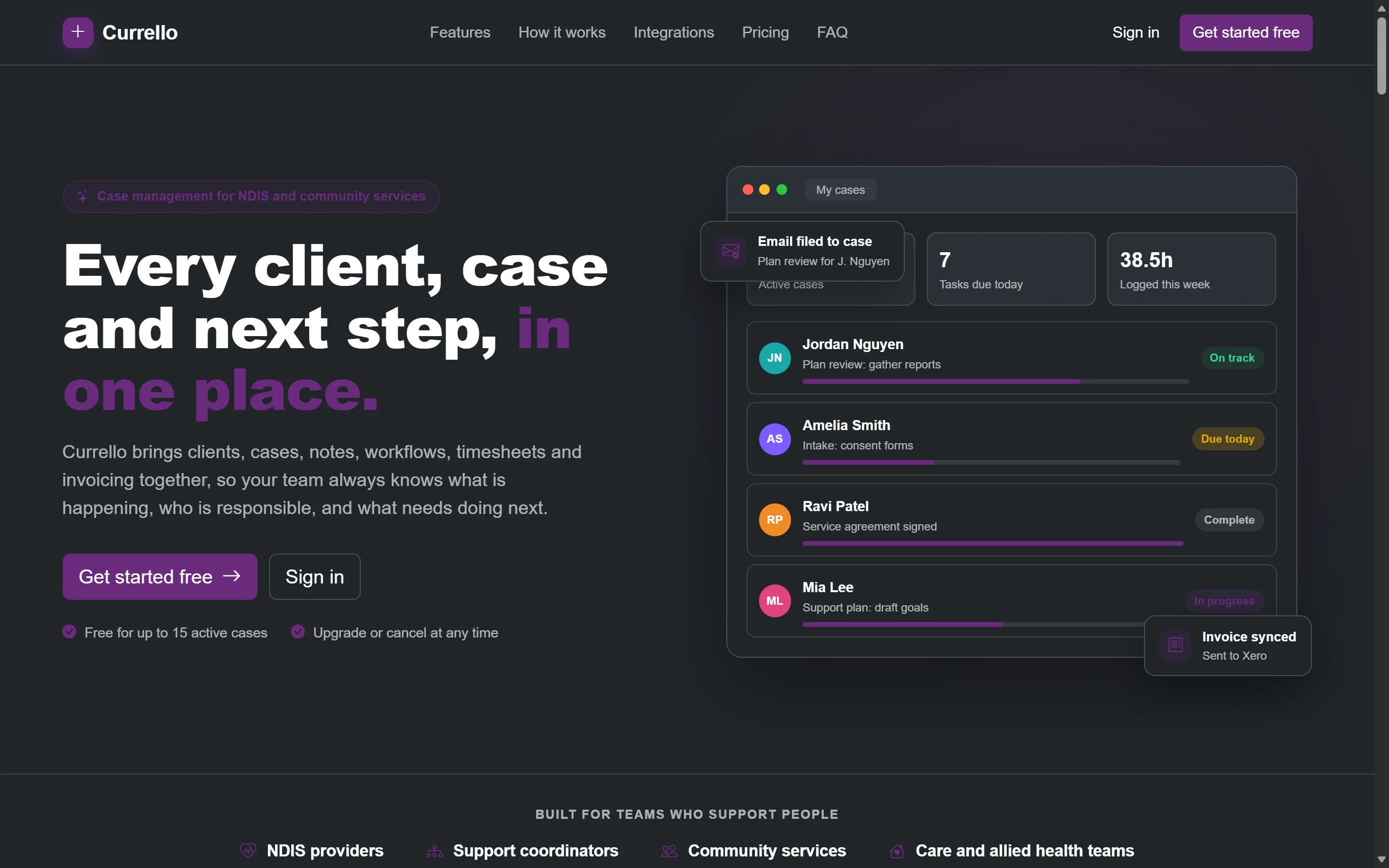
- Enter your organisation name and ABN, then select Validate. Currello checks the ABN against the Australian Business Register and shows the registered entity name.
- Add your NDIS registration ID, the administrator's name and email, and your business website.
- Pick your organisation time zone. It is used for scheduled emails and due dates.
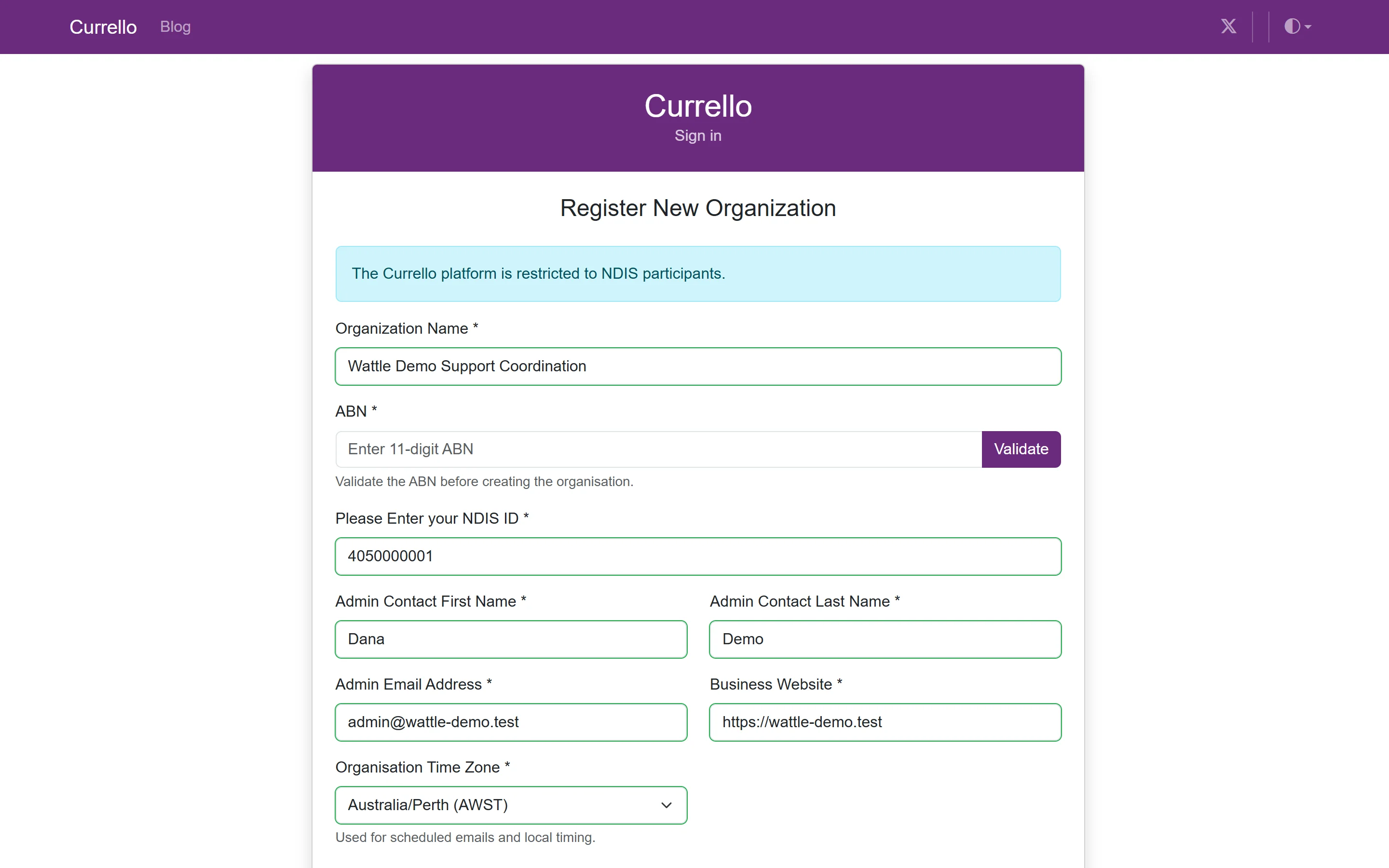
- Confirm the country and base currency, then enter your business address.
- Choose an administrator password, accept the Terms of Service and Privacy Policy, and select Create Organization.
- We email a 6-digit verification code to the administrator address. Enter it to confirm the email. The code expires after 15 minutes, and you can resend it.
2Sign in
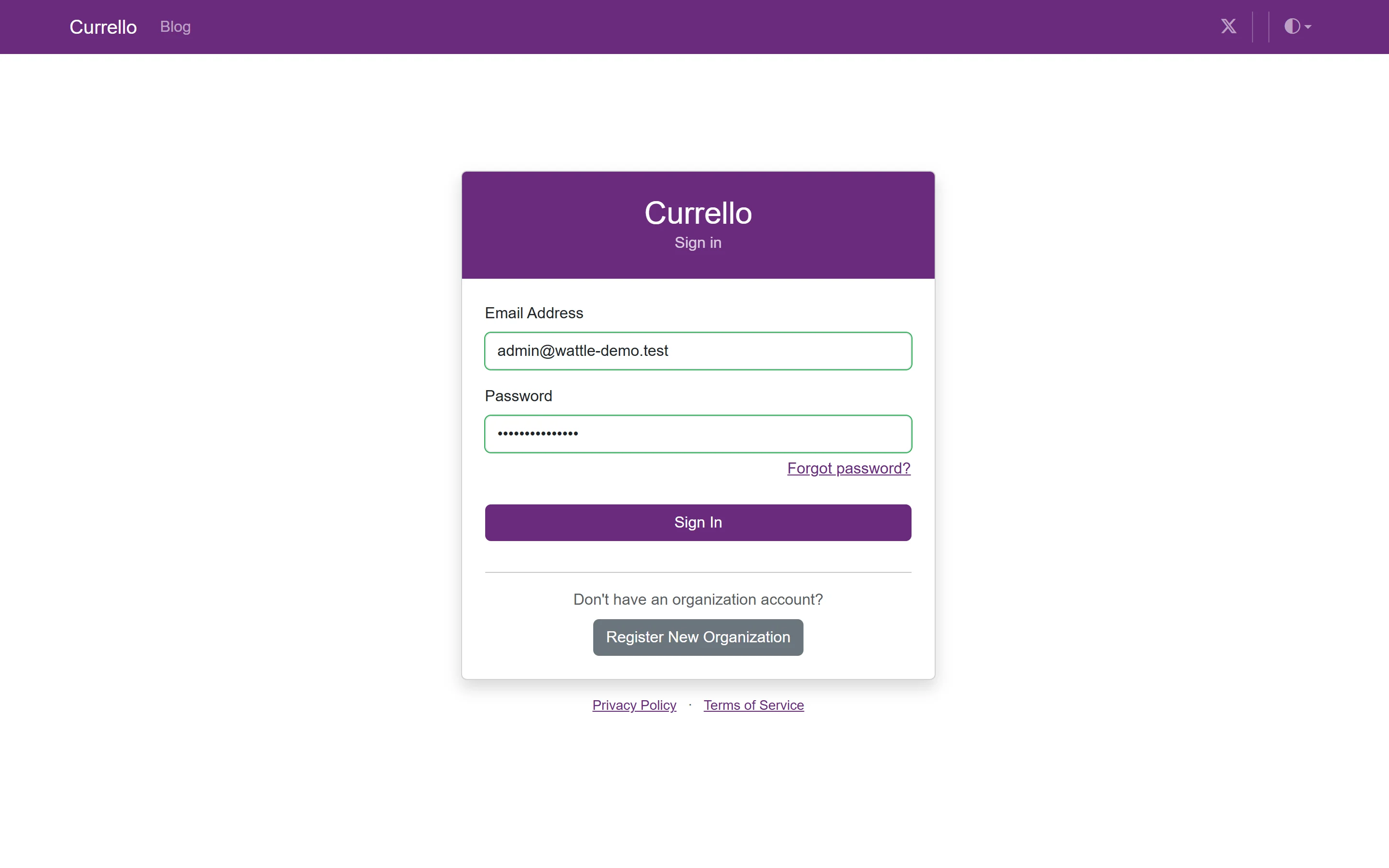
Open Currello and sign in with the administrator email and password you chose. If you forget your password, use Forgot password? to get a reset code by email.
3Create your first workflow
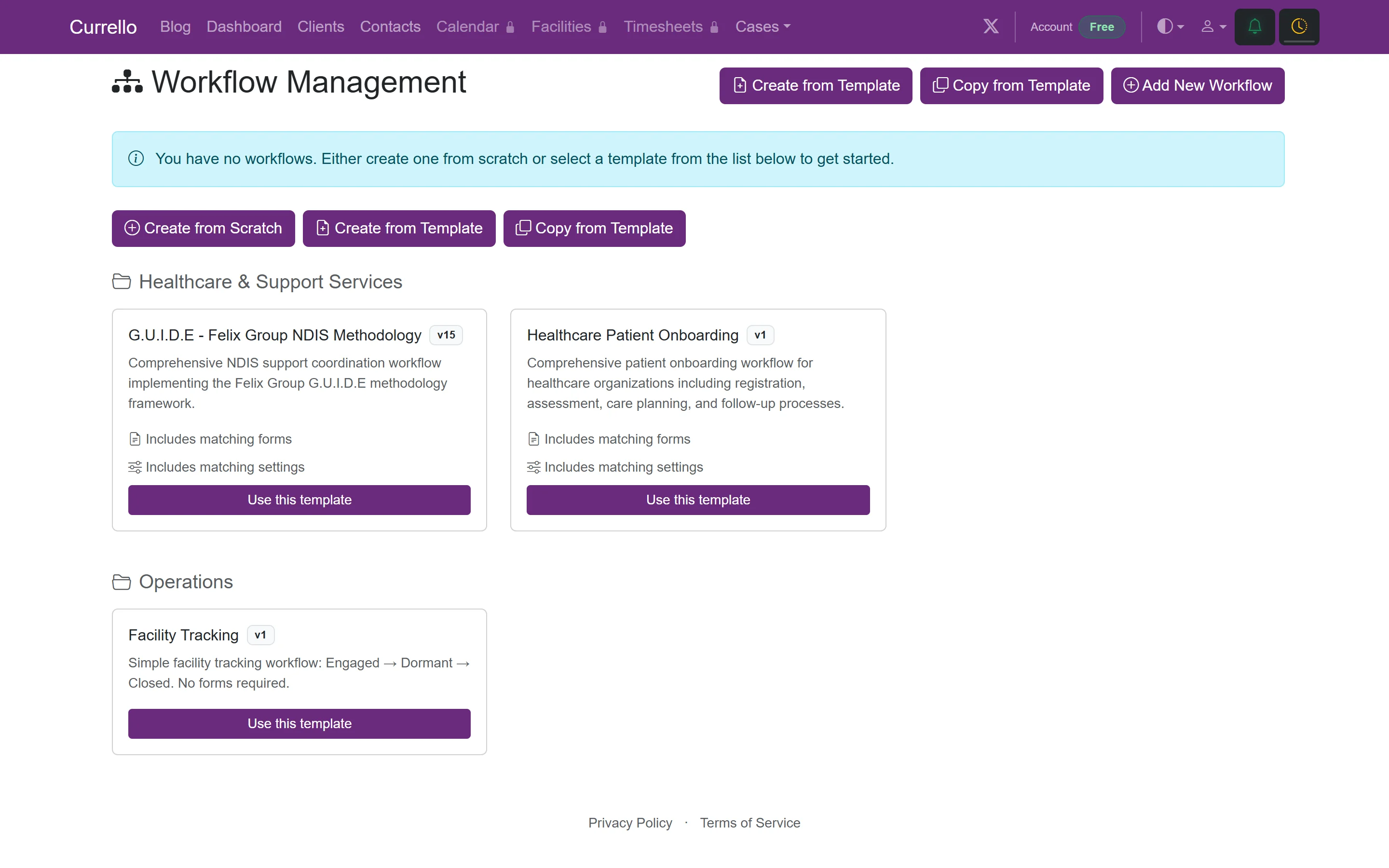
Every case runs through a workflow: a set of stages (processes) and the tasks inside them. A new organisation starts with none, so the dashboard links you to Workflows. Open it from the user menu, or select Go to Workflows.
- Under Healthcare & Support Services, find G.U.I.D.E – Felix Group NDIS Methodology and select Use this template.
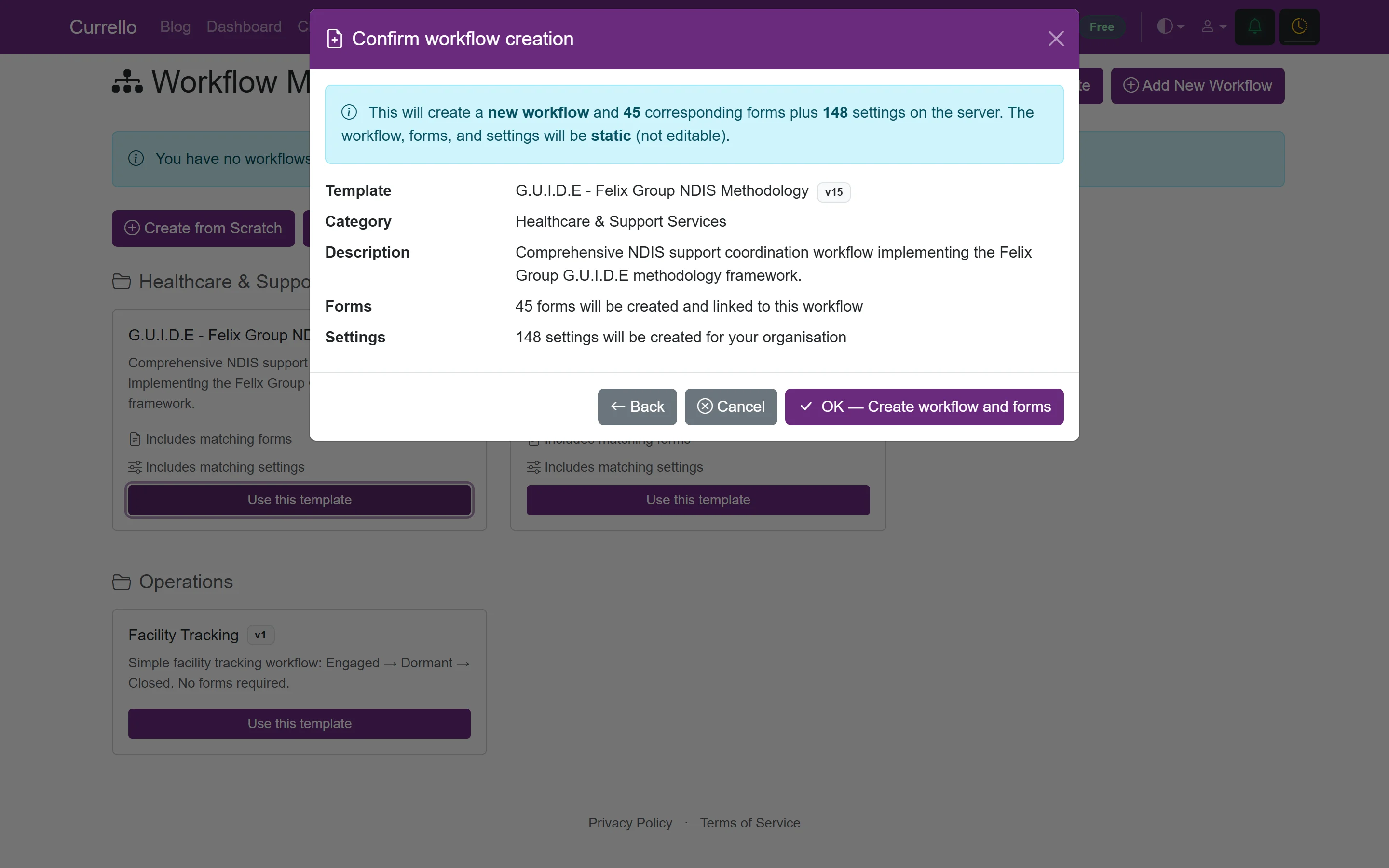
- Check the summary. The template adds the workflow plus 45 matching forms and 148 settings, such as billing rates and task types.
- Select OK – Create workflow and forms.
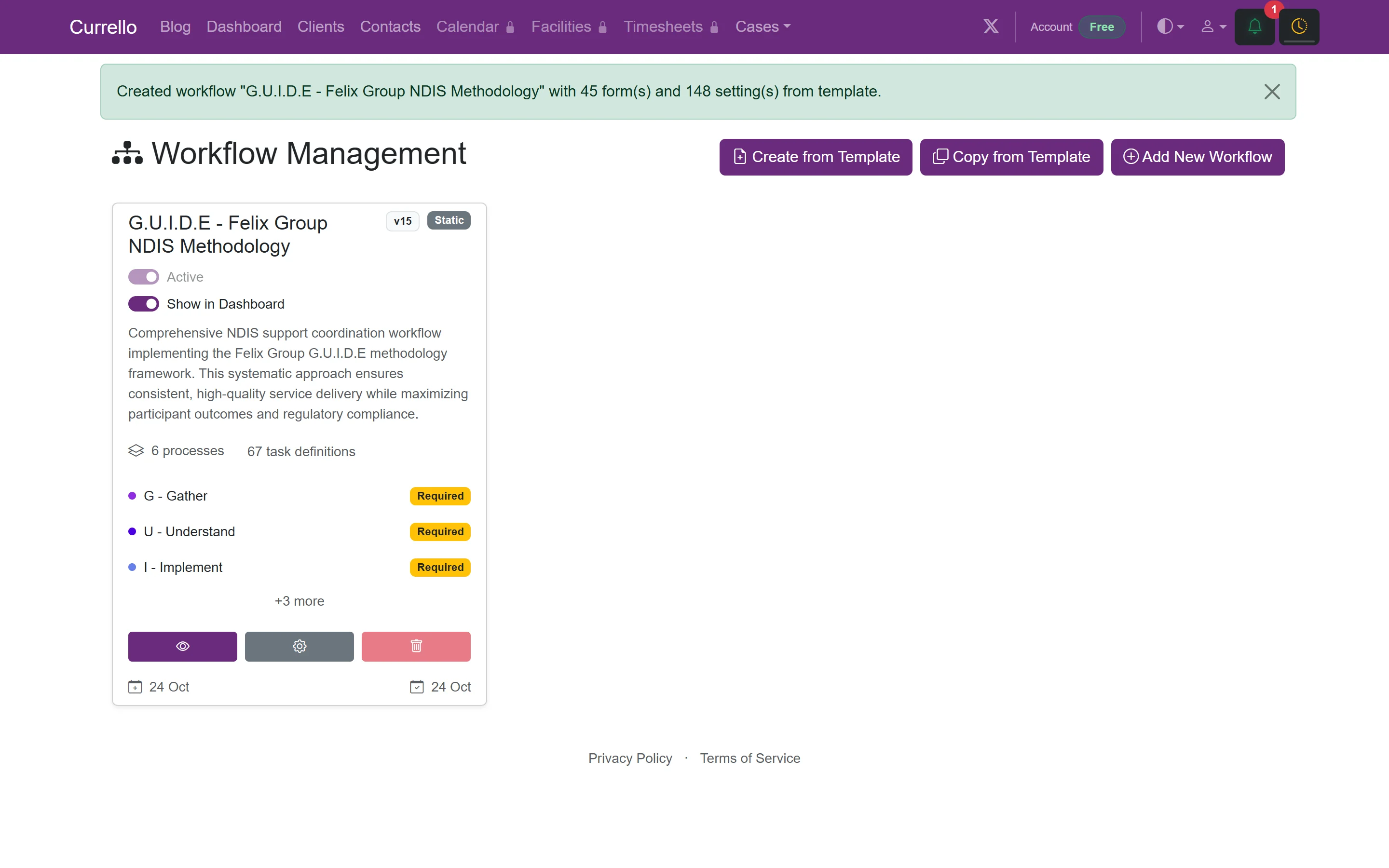
The workflow appears as a card showing its stages: G – Gather, U – Understand, I – Implement, D – Develop, E – Evaluate, plus a Registers process for records such as later home risk assessments. Leave Show in Dashboard on so its numbers appear on your dashboard.
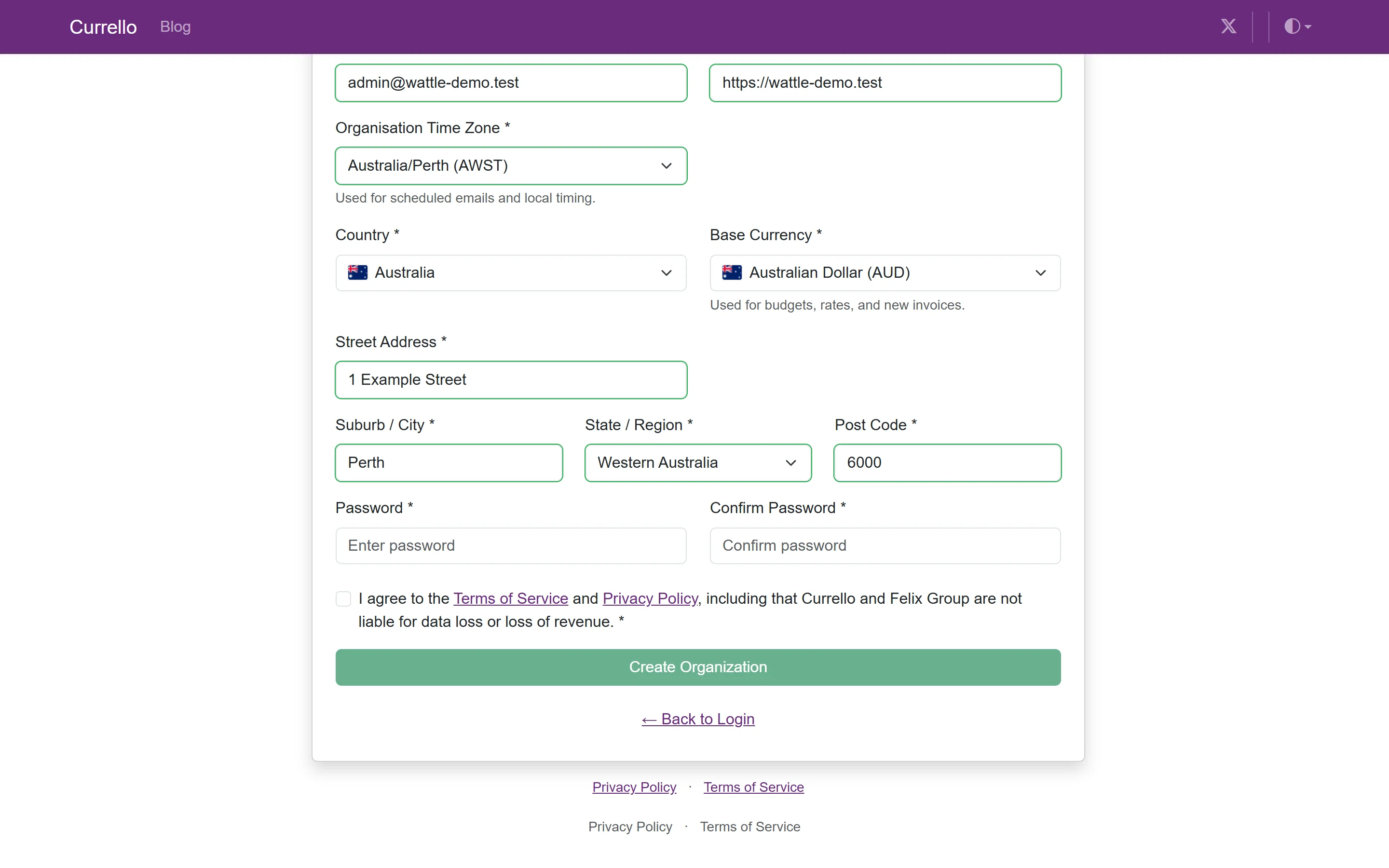
4Your dashboard
The dashboard is your home screen. For each workflow shown on the dashboard you see organisation-wide active cases and tasks, your own active cases, and hours and caseload targets for the week, month and year.