1Add a client
A client is the person you support. Open Clients from the top bar to see everyone in your organisation, search by name, NDIS number, address or email, and see them on the map.
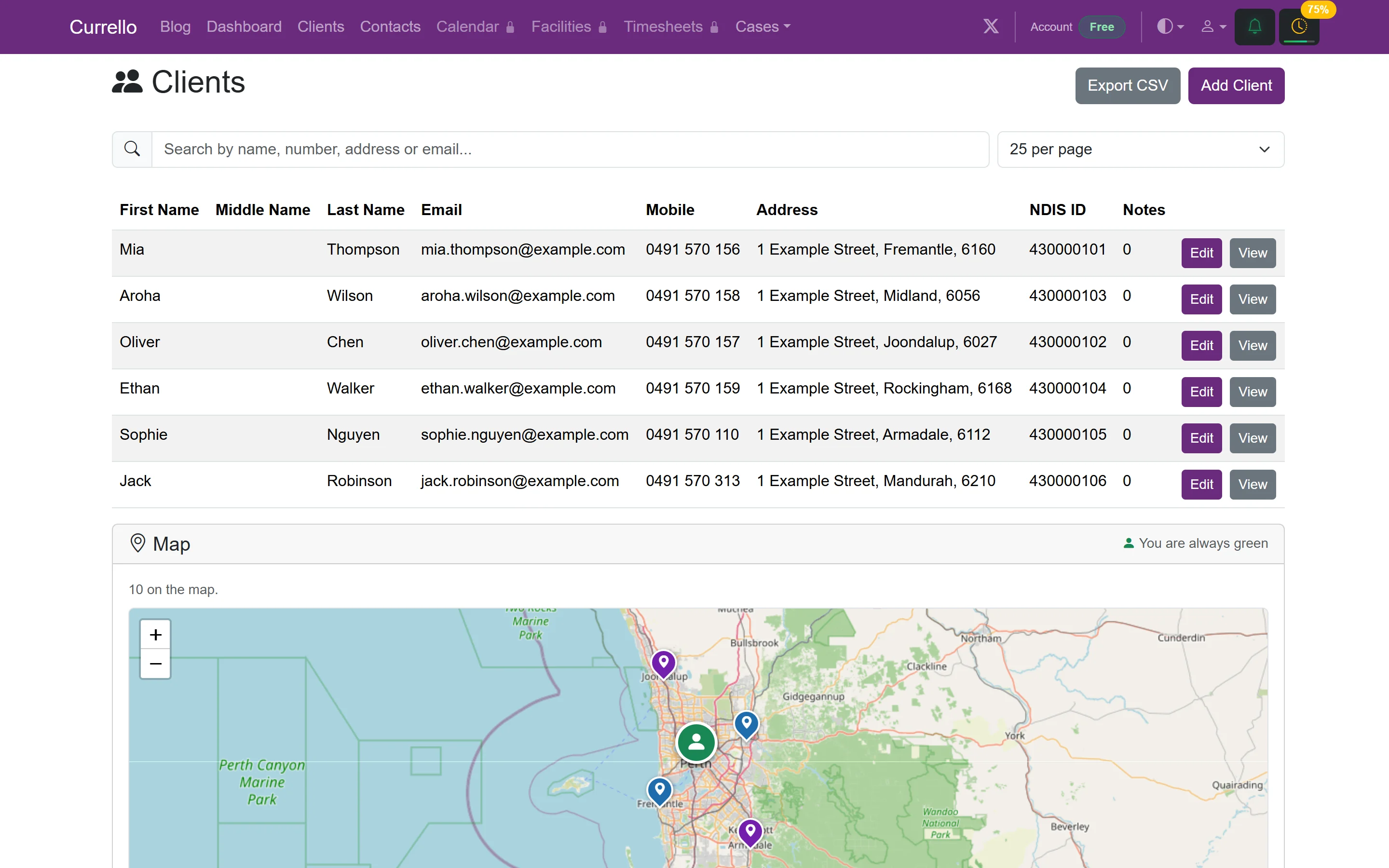
- Select Add Client.
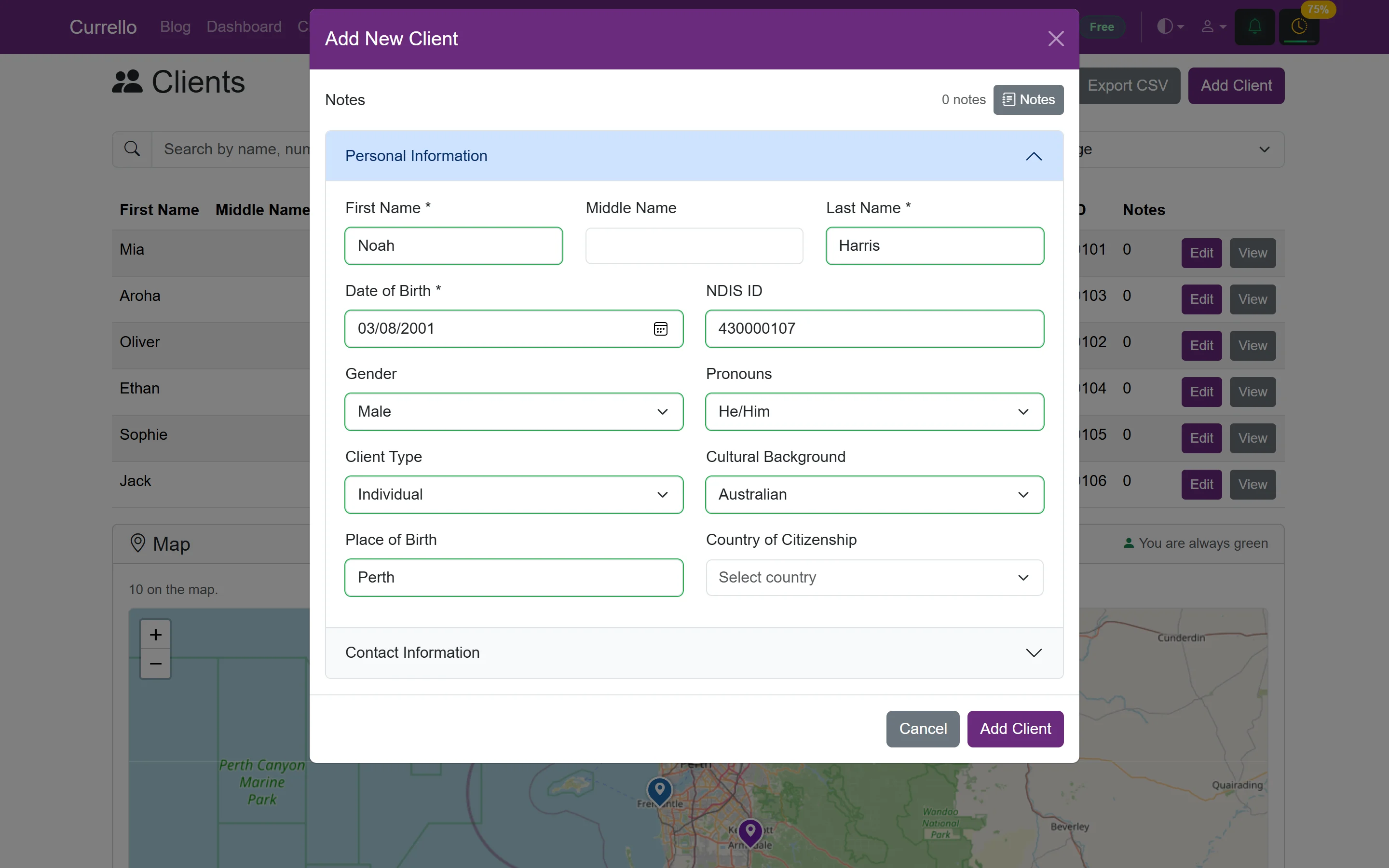
- Under Personal Information, enter first and last name, date of birth and NDIS ID. Optionally add gender, pronouns, cultural background and place of birth.
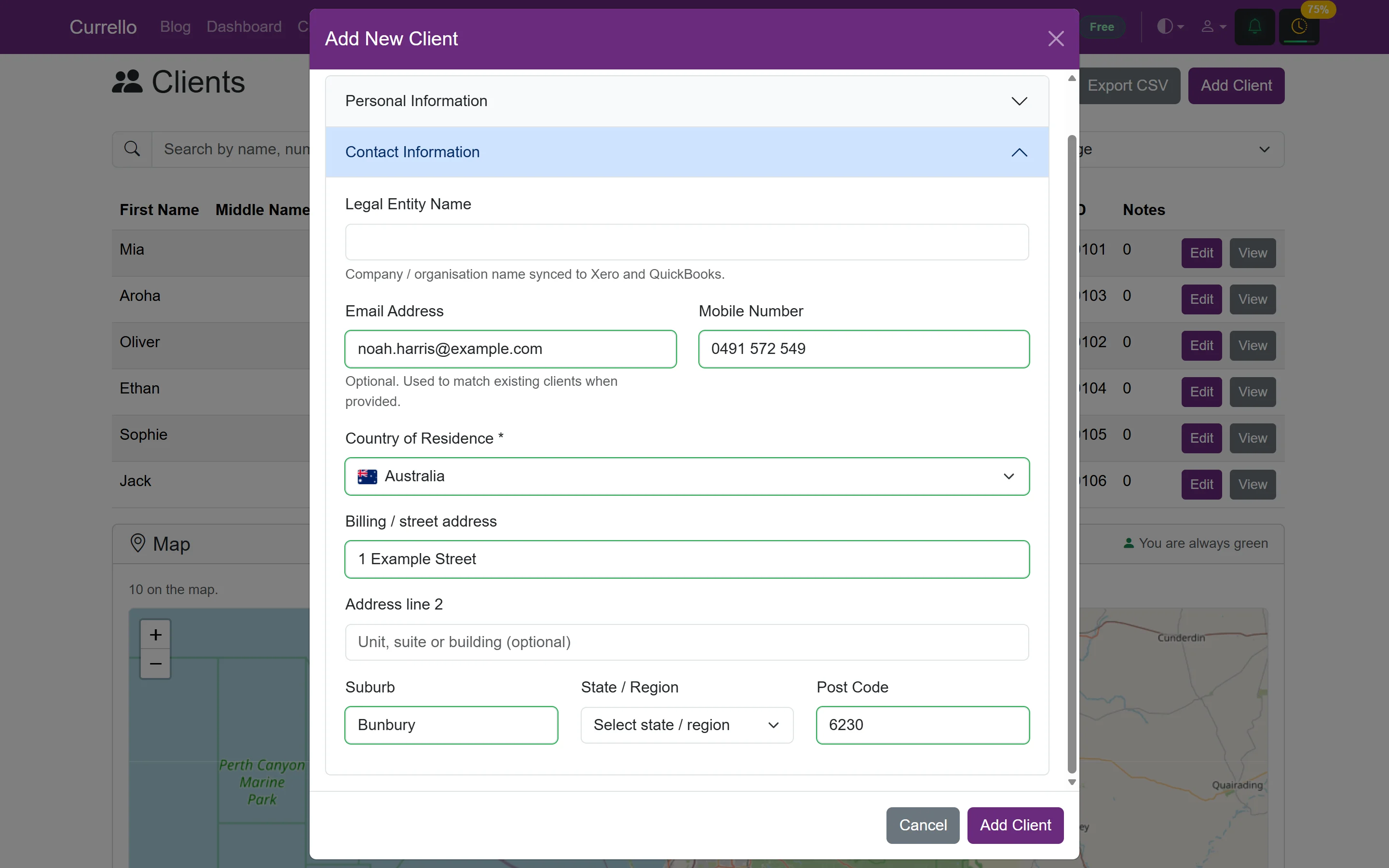
- Open Contact Information and add email, mobile, country of residence (required) and address.
- Select Add Client. If the street can't be found on the map, Currello says so. Select Add Client again to keep the address as entered.
2Open a case
A case is a period of support for one client. Open Cases → New Case.
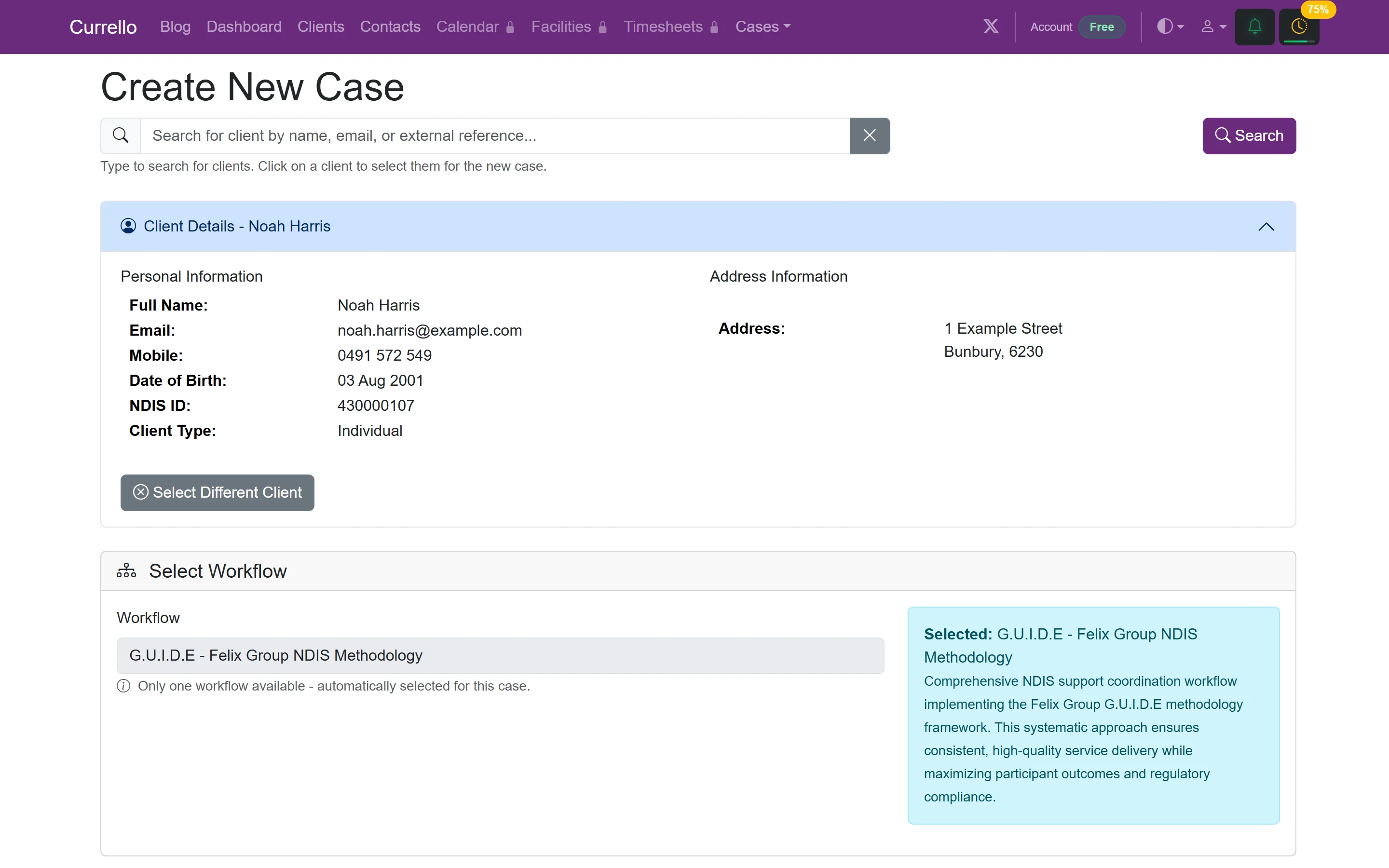
- Start typing the client's name, email or NDIS number and pick them from the suggestions. Their details appear so you can check you have the right person.
- Choose the workflow. If your organisation has only one, it is selected automatically.
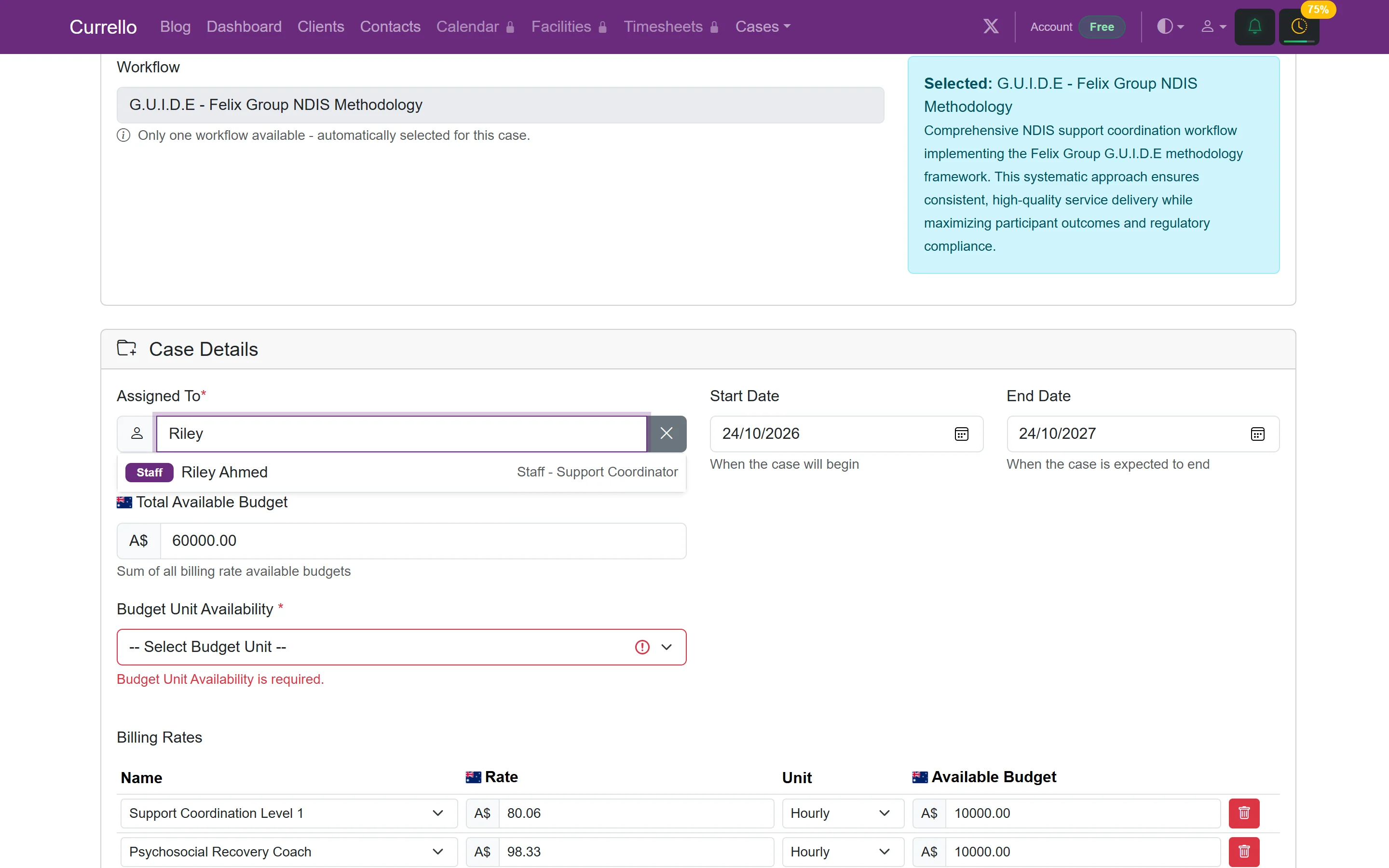
- Under Case Details, choose who the case is assigned to by typing a staff member's name. Set the start and end dates, usually the plan dates.
- Choose Budget Unit Availability: weekly, monthly or quarterly. Currello spreads the budget across those periods and can roll unused budget into the next one.
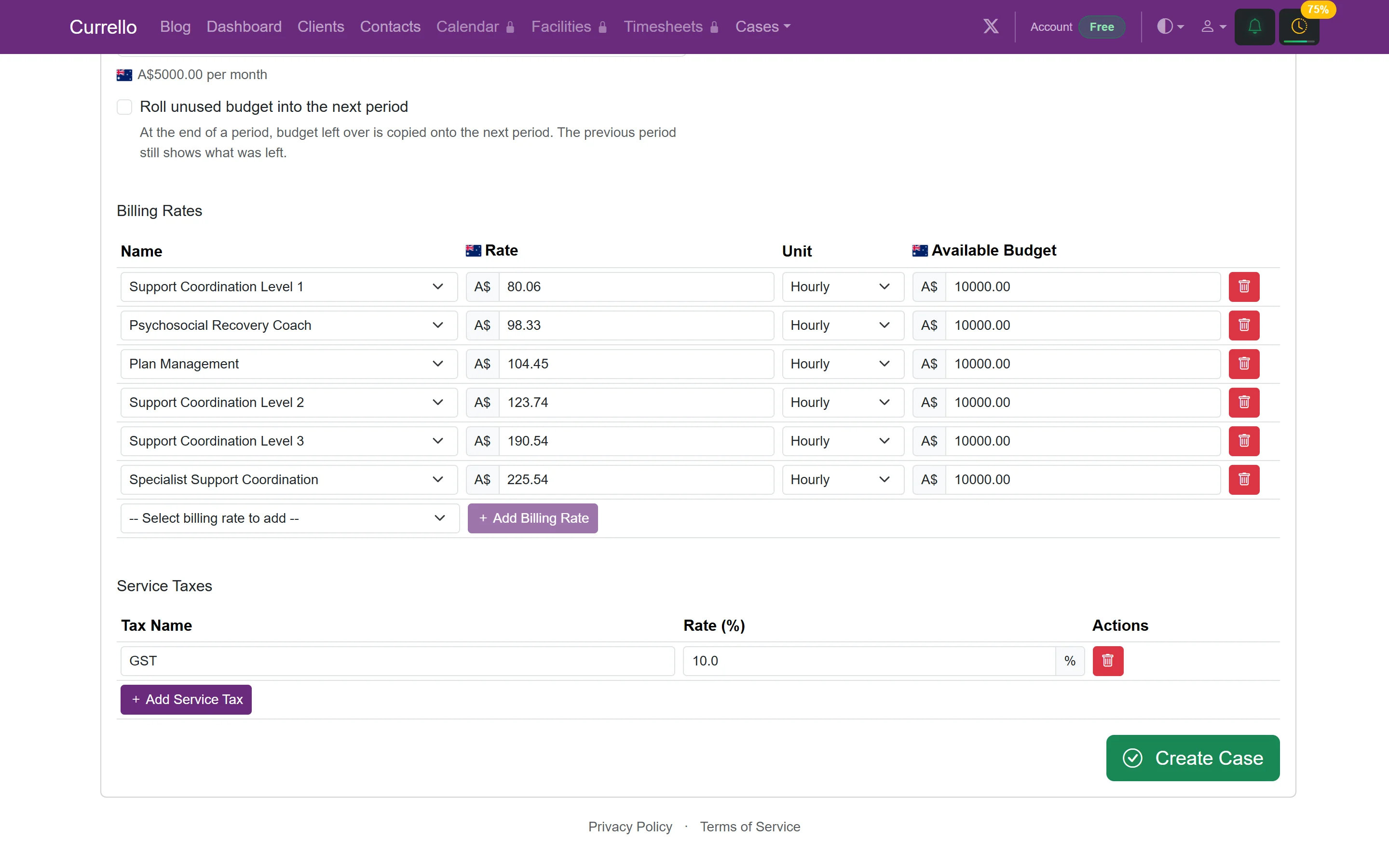
- Review the billing rates and their budgets, and any service tax such as GST. Your organisation's default rates are filled in for you.
- Select Create Case.
3Find a case
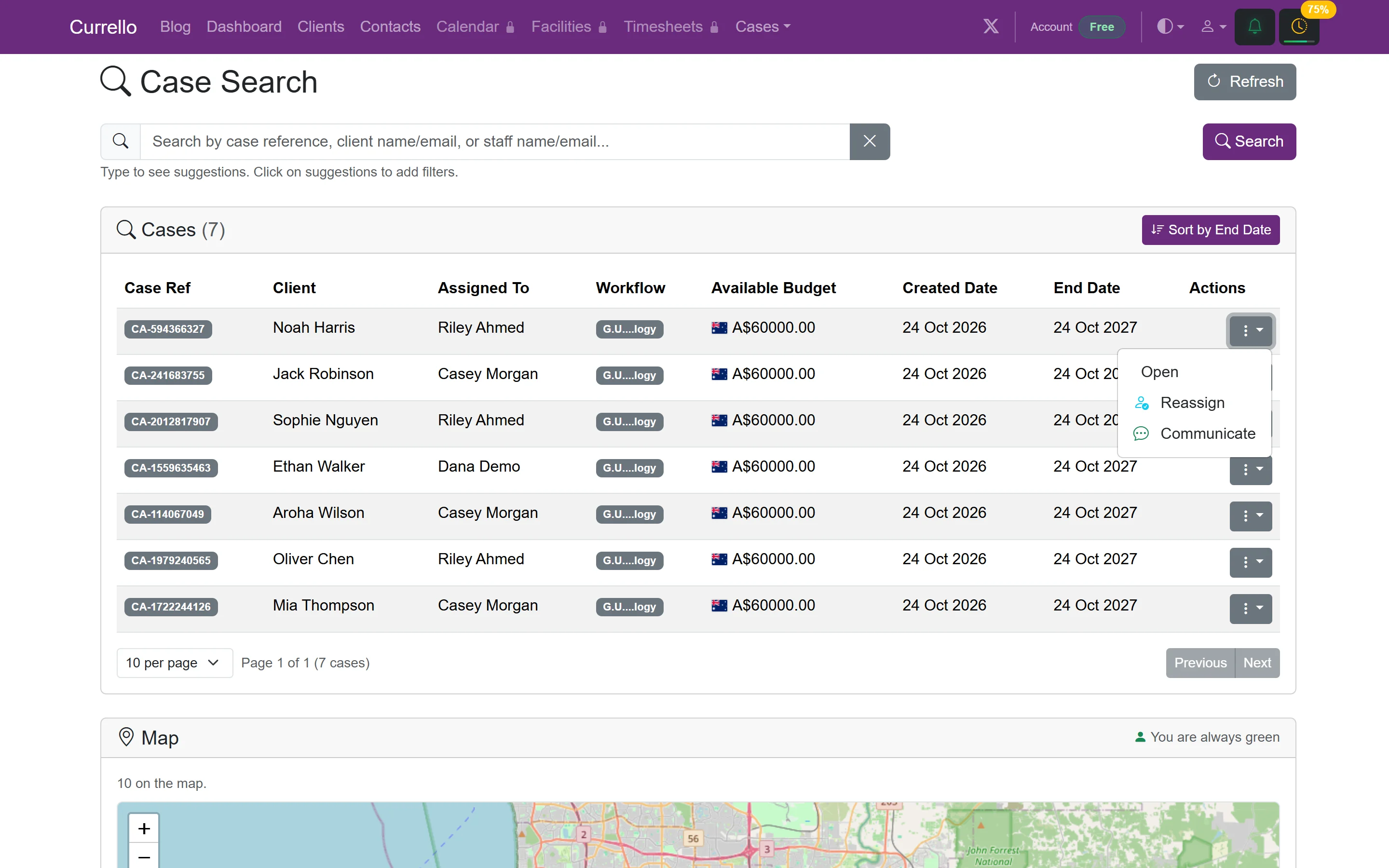
Cases → Case Search lists every case you can see, with client, assignee, workflow, budget and dates. Type in the search box for suggestions you can add as filters. Use the ⋮ menu on a row to Open, Reassign or Communicate.
4The case page
Everything about a case is on one page:
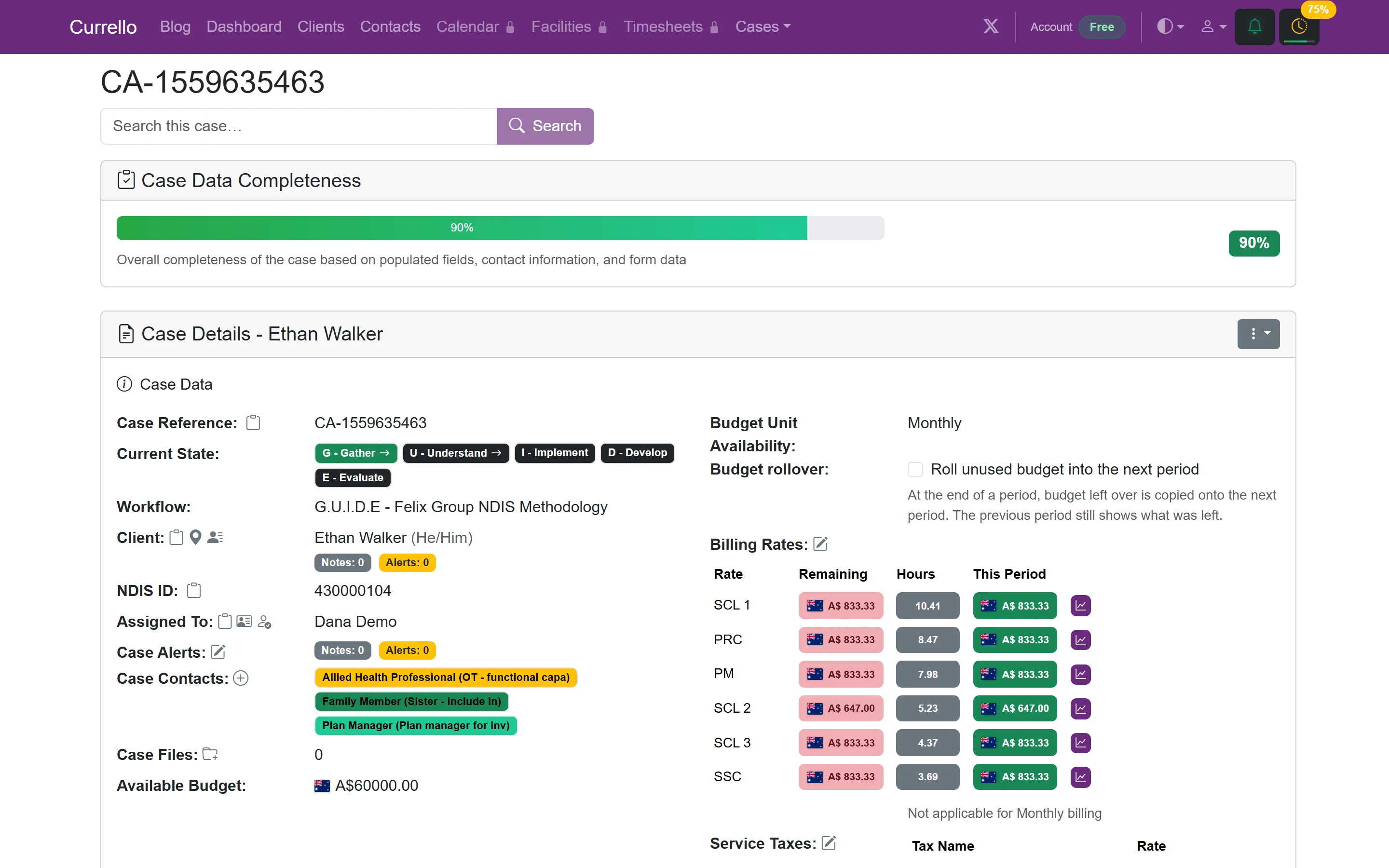
- Case Data Completeness: how much of the case record, contacts and forms is filled in.
- Case Details: reference, current workflow stage, client, NDIS ID, assignee, alerts, contacts, files and budget.
- Billing Rates: remaining budget, hours left and this period's allowance for each rate. Use the chart icon to see usage.
- Case Actions: add a case note, create a workflow or ad hoc task, or communicate with people on the case.
- Tasks and Case History: see below.
5Write a case note
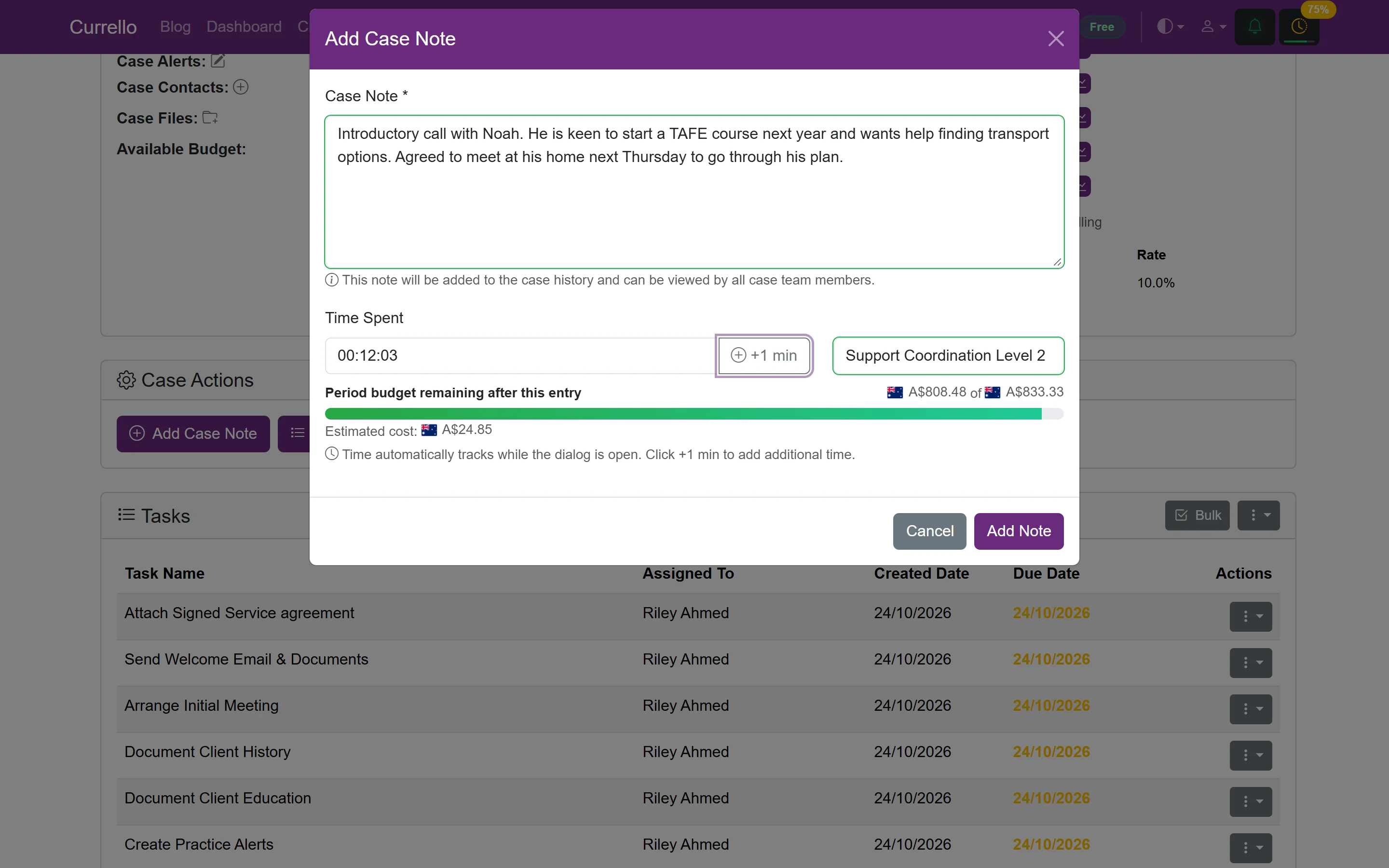
- In Case Actions, select Add Case Note.
- Write what happened: who you spoke to, what was agreed and the next steps.
- Time Spent counts up automatically while the dialog is open. Use +1 min to add time spent before you opened it.
- Pick the billing rate. Currello shows the estimated cost and the period budget left after this entry.
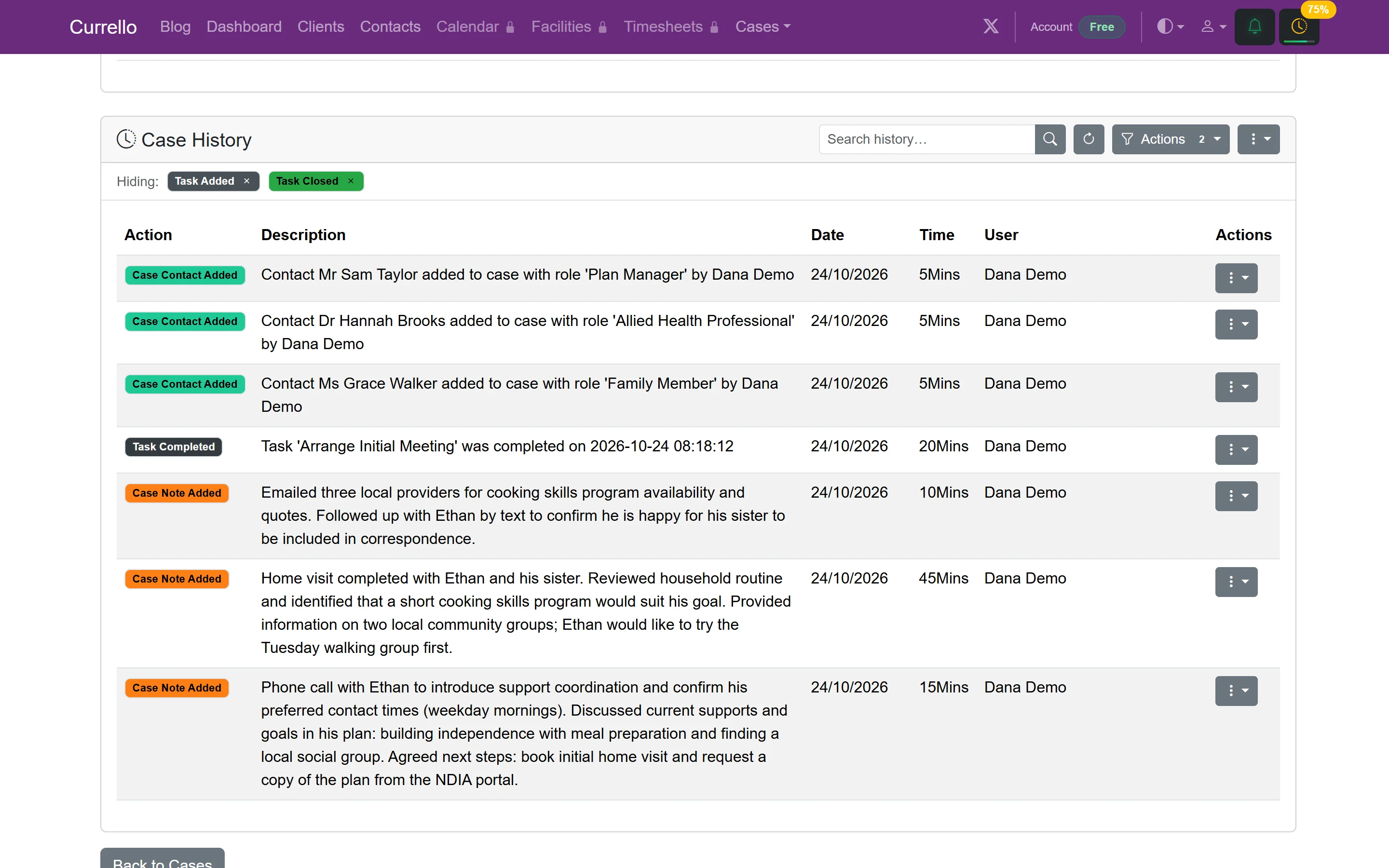
- Select Add Note. The note goes into Case History, where everyone on the case team can see it.
6Run workflow tasks and forms
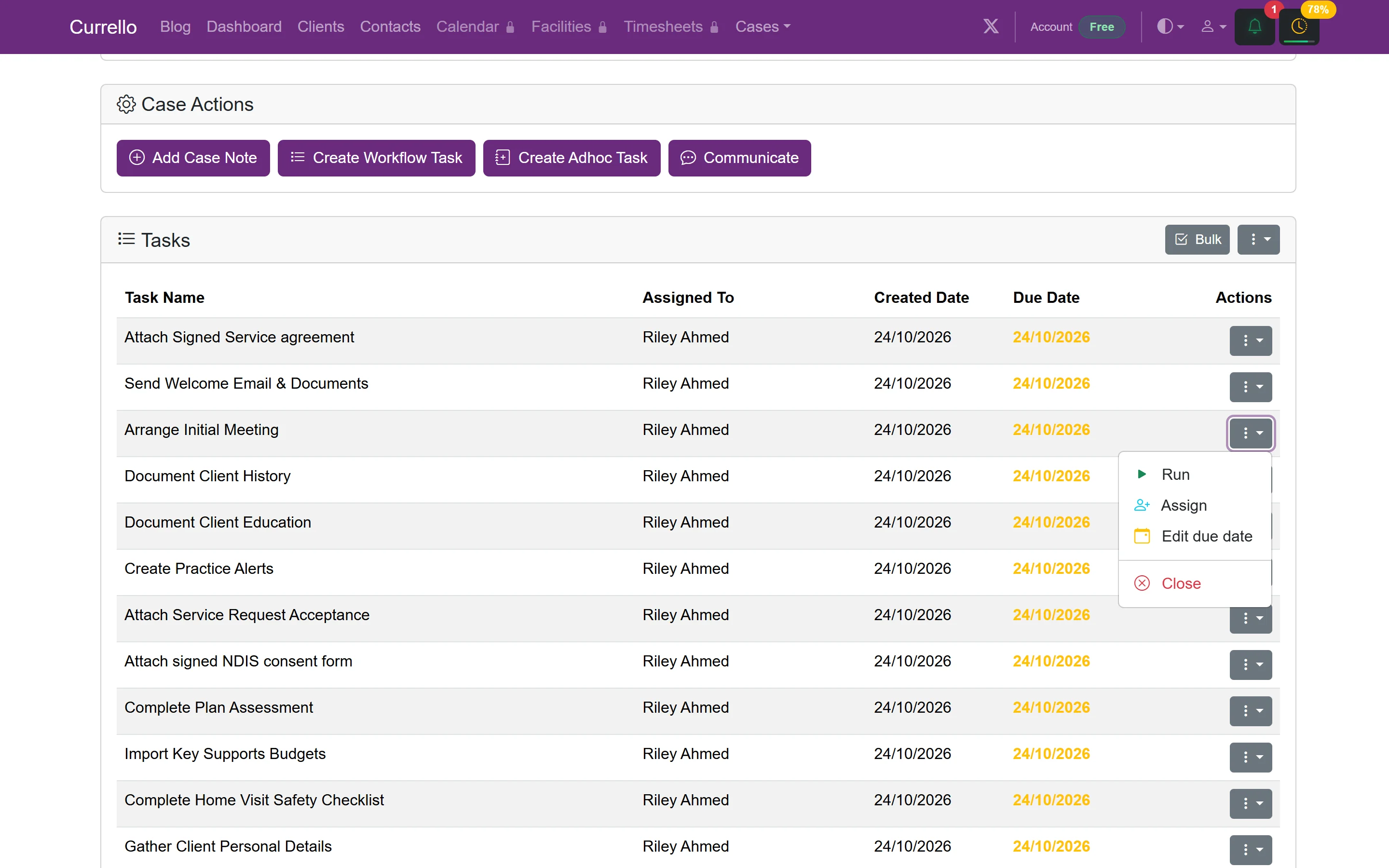
The workflow creates tasks for the current stage, such as Arrange Initial Meeting or Complete Home Visit Safety Checklist. Each task has an assignee and a due date. Open a task's ⋮ menu to Run, Assign, Edit due date or Close it.
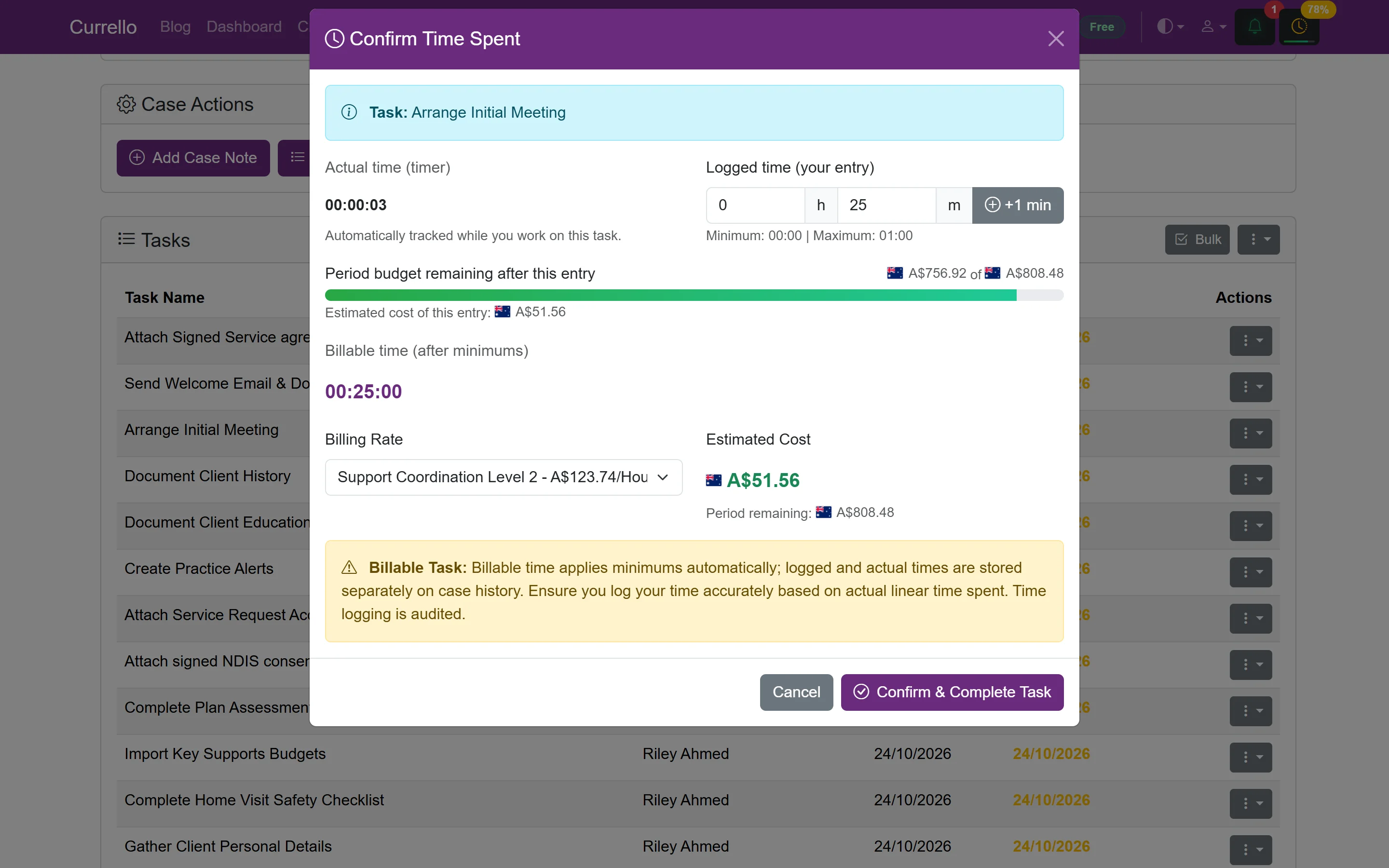
- A task without a form asks you to Confirm Time Spent. Enter the hours and minutes, choose a billing rate, and select Confirm & Complete Task. Minimum billable times apply automatically, and both logged and actual time are kept.
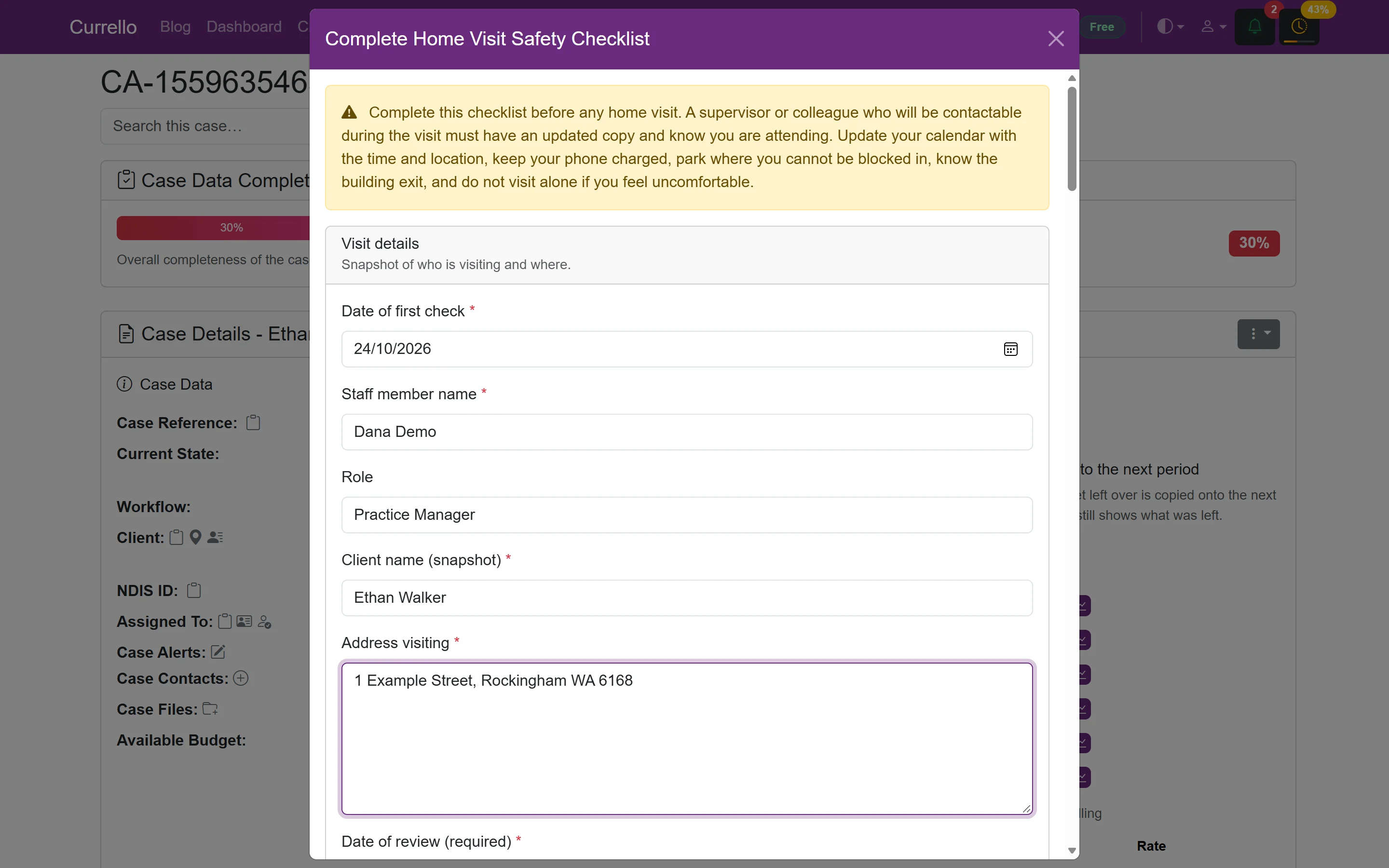
- A task with a form, such as the home visit safety checklist, opens the form. Required fields are marked with *.
7Contacts and case contacts
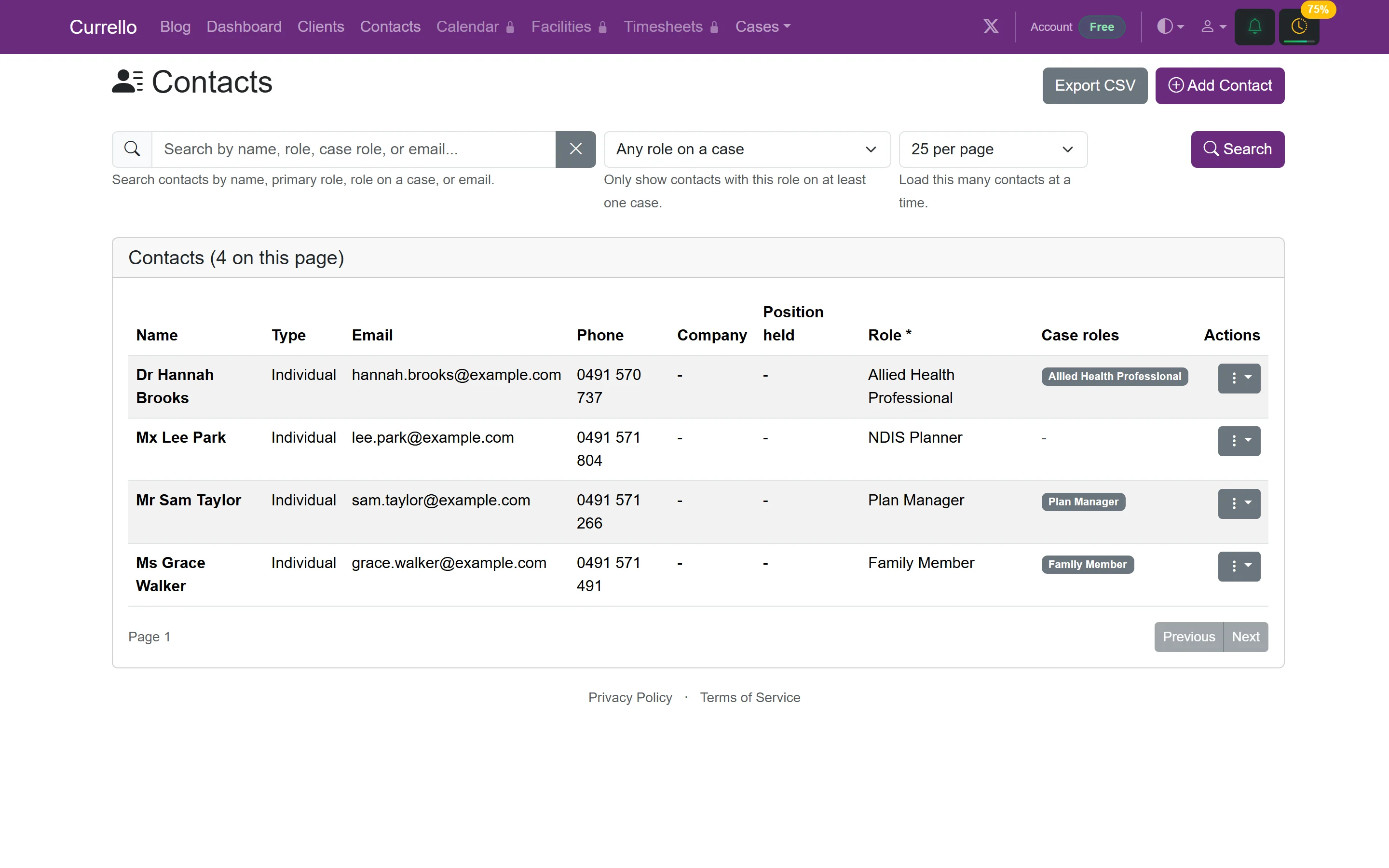
Contacts are the people around a participant: family, allied health professionals, plan managers, NDIS planners and providers. Add them once from Contacts → Add Contact with a role such as Family Member or Plan Manager. You manage the role list under Settings → Contact Settings.
To link a contact to a case, select the + next to Case Contacts on the case page, search for the contact, choose their role on this case and add a short note. Linked contacts show as coloured tags on the case.
8My Cases
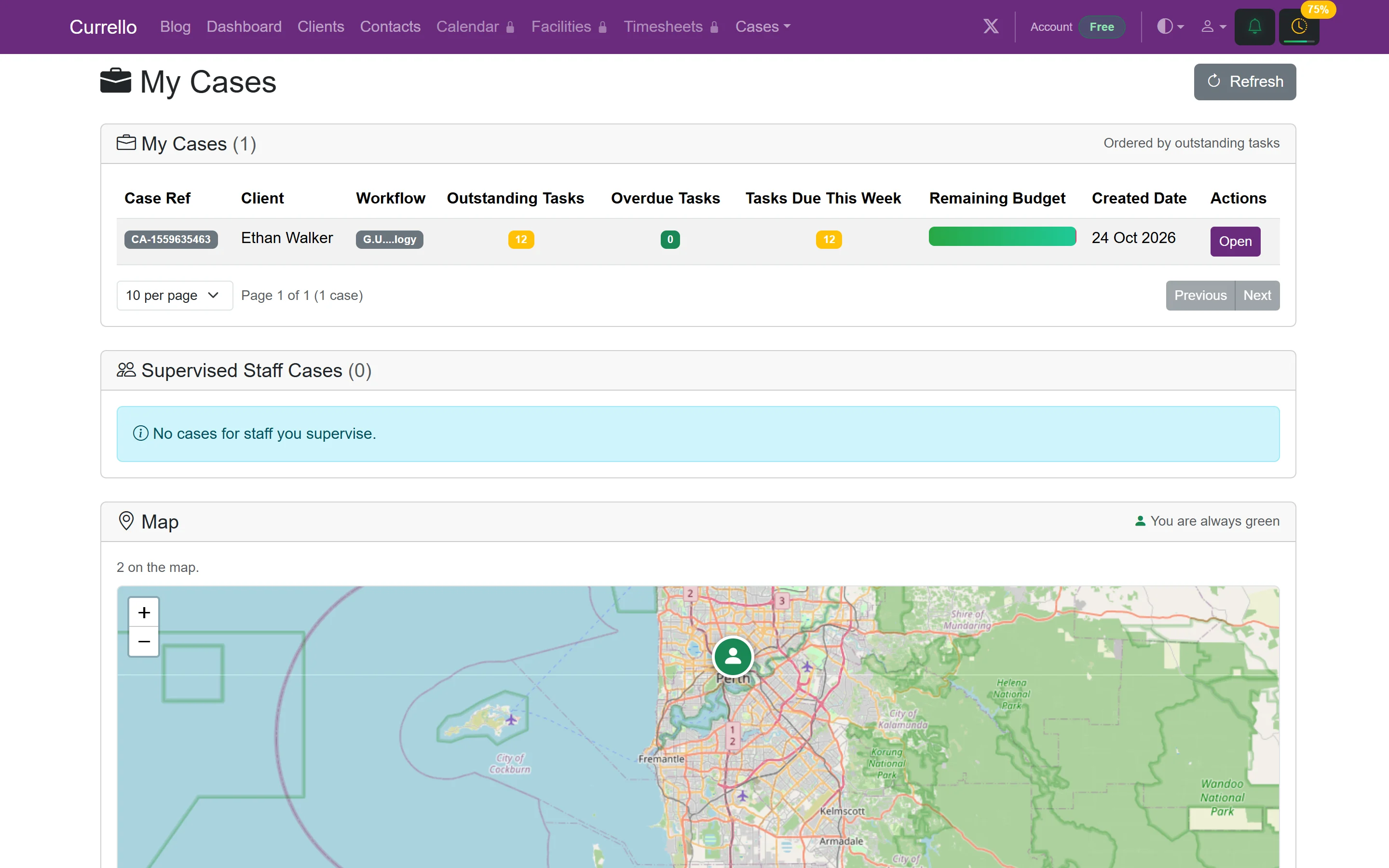
Cases → My Cases is a coordinator's working list. It shows cases assigned to you, ordered by outstanding tasks, with overdue tasks, tasks due this week and remaining budget. Supervisors also see a Supervised Staff Cases list for the people who report to them.