1Guest roles
- Client: the participant. They see only their own cases.
- Partner: someone supporting the participant. Same portal, and by default they see budgets only.
- Auditor: read-only access for review and audit.
Guests never get a staff profile, and they only ever see the participant portal.
2Invite a guest
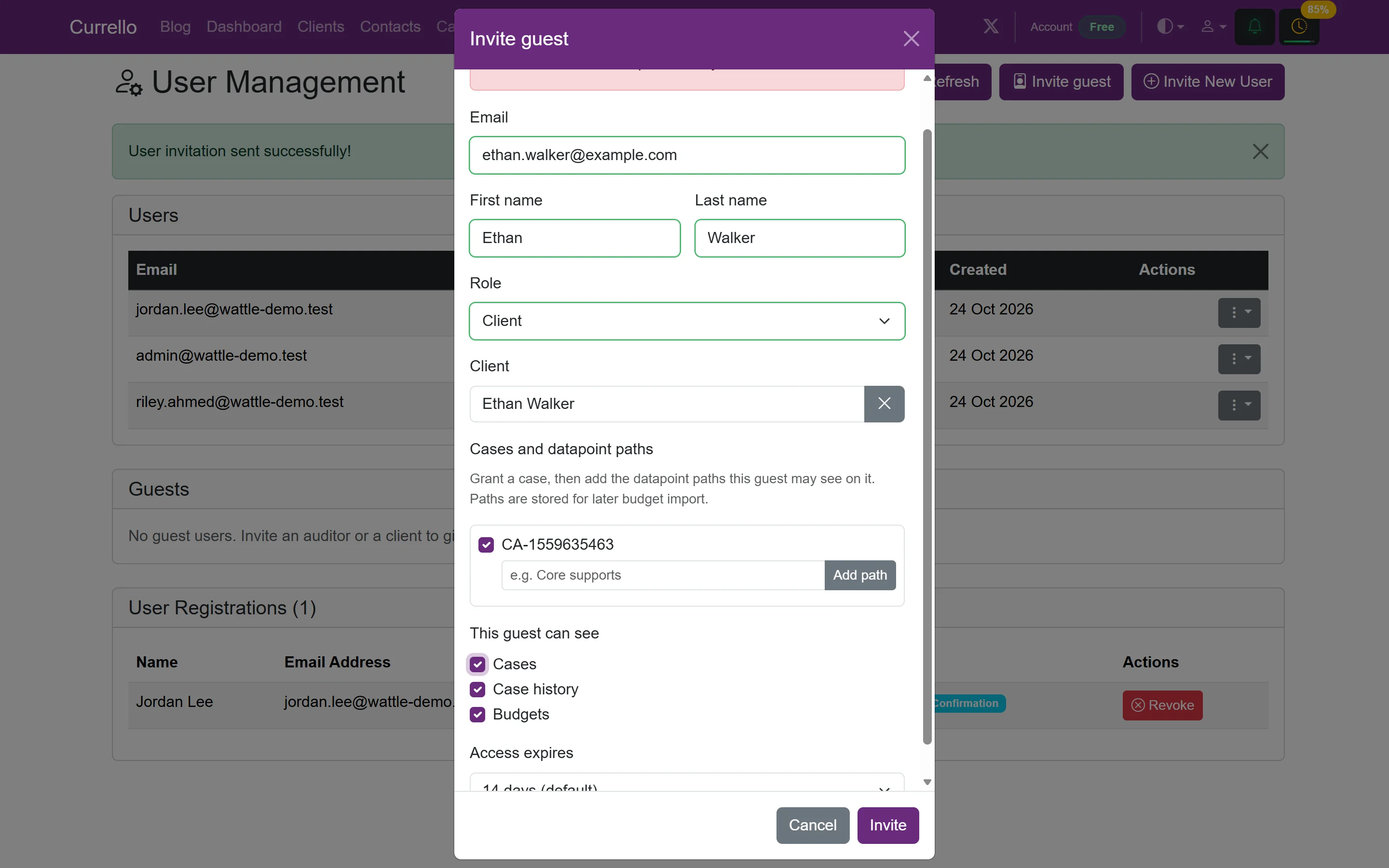
- Go to Users and select Invite guest.
- Enter the guest's email, first and last name, and choose the role.
- For a Client or Partner, search for and choose the client they belong to. Their cases are listed.
- Tick each case to grant, and add a datapoint path, for example Core supports. Before the guest signs in, check that the guest list shows the case (for example 1 case, 1 datapoint) and not No case data.
- Choose what they can see (Cases, Case history, Budgets) and when access expires: 14 days, no expiry, or a date.
- Select Invite. The guest gets an email with a code to set their password.
3Change or remove access
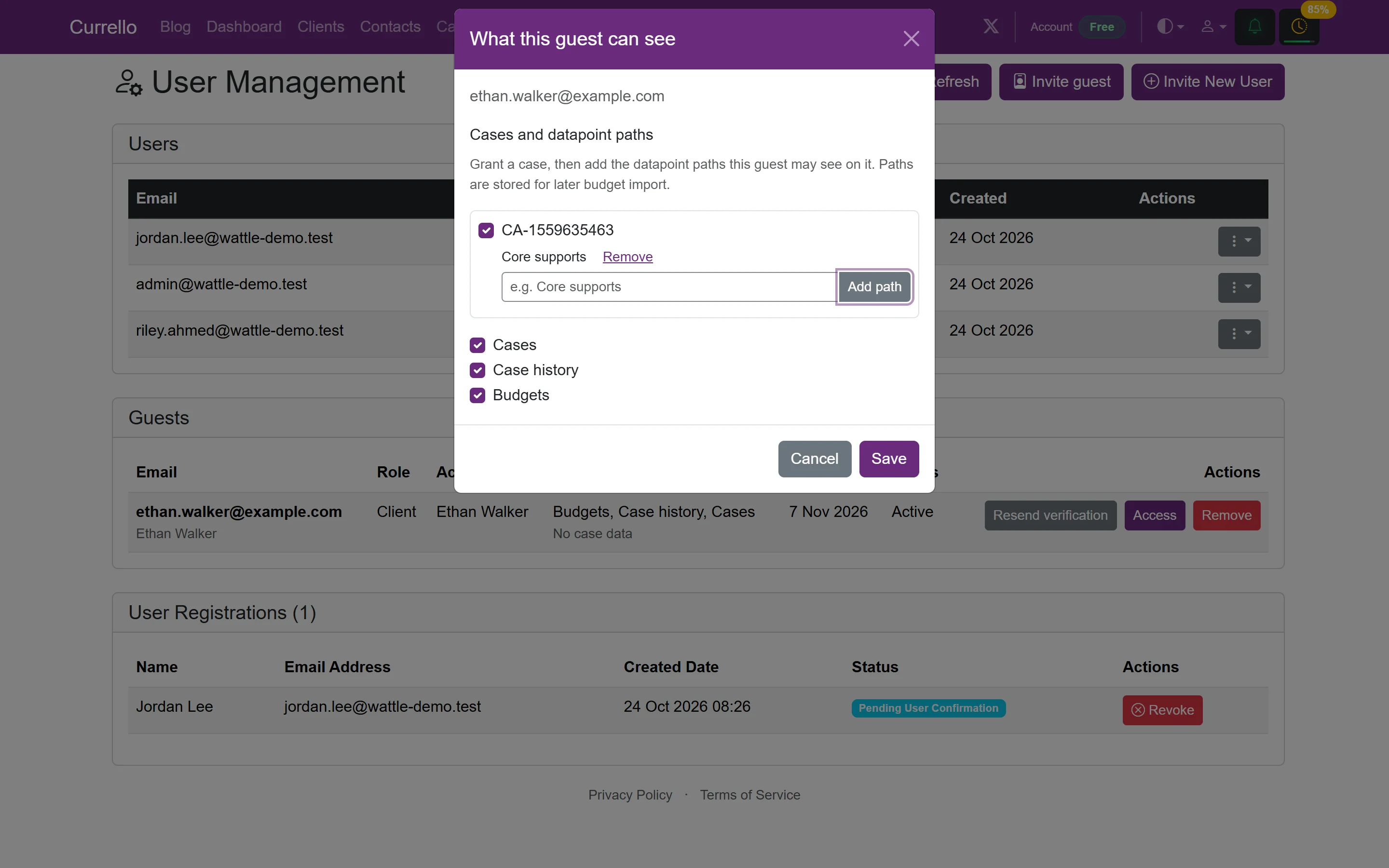
Guests are listed under Guests on the Users page, with what they can see, how many cases and datapoints they have, and when access expires. Use Access to change cases, paths and visibility, Resend verification if the invitation expired, or Remove to end access.
4What the guest sees
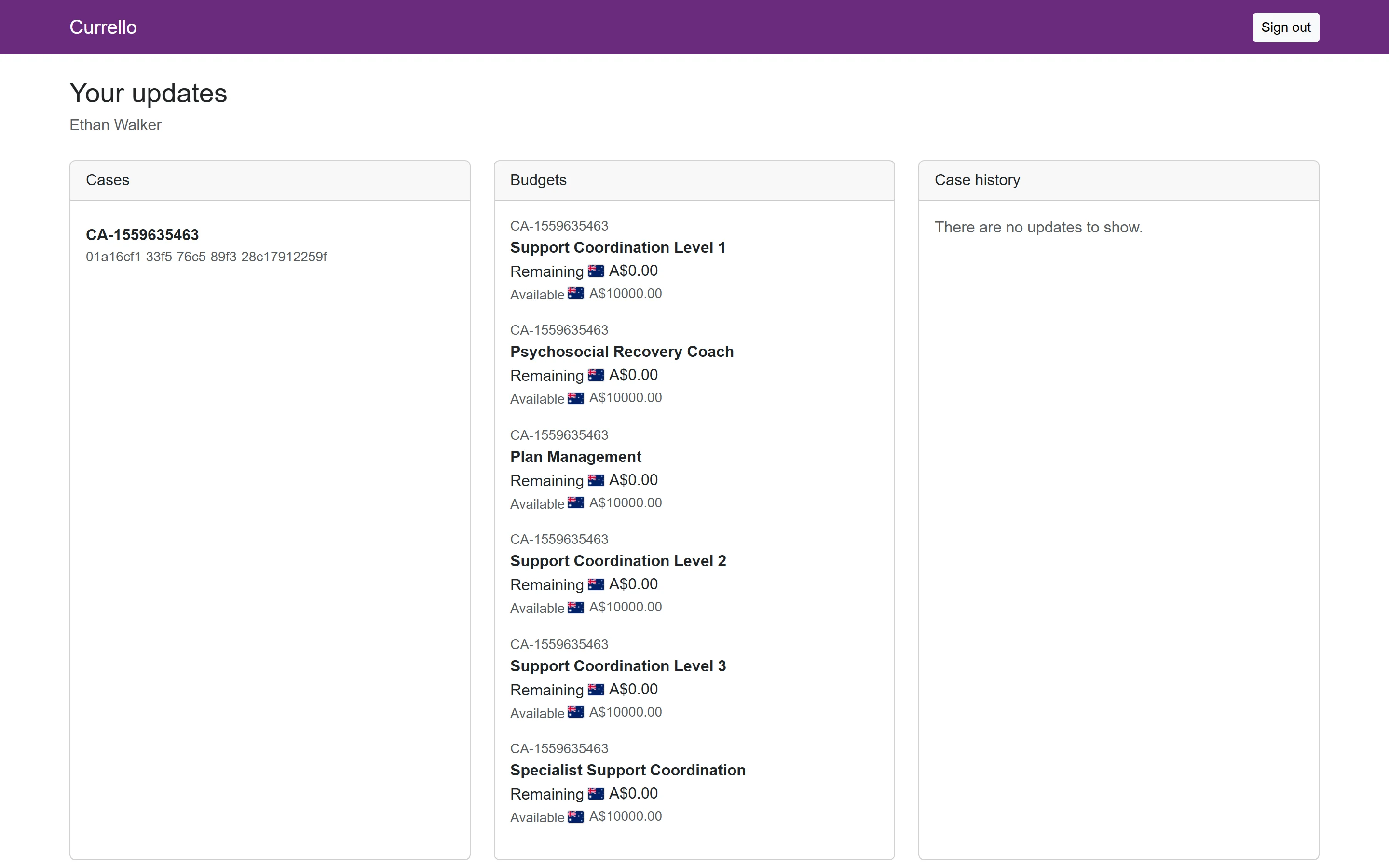
After setting a password, the guest signs in on the normal sign-in page and lands on Your updates. It shows their granted cases, the budget for each billing rate (remaining and available), and case history updates if you allowed them. There are no menus, editing or other clients.